English
 Magyar


In many cases, it may be necessary to know exactly which version of Outlook you are using. Fortunately, this can be easily determined in the following ways:
Outlook on Windows
Outlook is a high-performance application for managing email, contacts and calendars. Follow the steps below to find out which version of Outlook is installed on your computer.
- In Outlook, select ‘File’.

- Select the ‘My Office Account’ option.
If you cannot see the ‘Office Account’ option, select ‘Help’. The product version will appear on the right-hand side of the page. - You can find the version and build number under the ‘Product Information’ menu item. Yours, for example, might be ‘Microsoft 365 Apps for enterprise’, and you can see which applications it contains from the icons.
- If you would like to know whether you are using the 32-bit or 64-bit version of Outlook, select the ‘Outlook Contacts’ menu item.
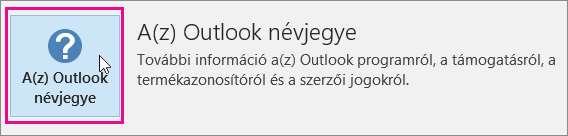
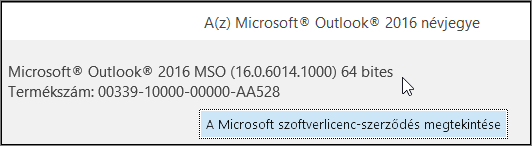
- The version number and whether it is 32-bit or 64-bit are displayed at the top of the Outlook box.
Outlook on macOS
- Open Outlook.
- Select Outlook from the menu bar (next to the Apple logo). If you cannot see the menu bar, move your mouse to the top of the screen and it will appear.
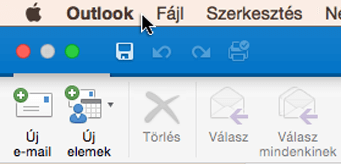
- Select the ‘Outlook Contacts’ menu item. The version information will appear here.
If Outlook is accessed via a Microsoft 365 subscription, the 2016 or 2011 versions will not appear.
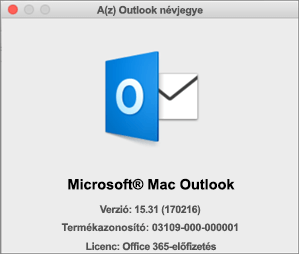
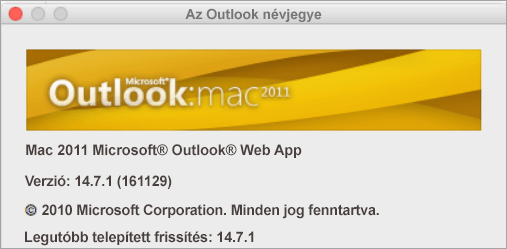
This is what it looks like if you are using Outlook for Mac 2011: