 English
 Magyar
 Deutsch



Docker does not delete anything automatically. Every downloaded image, every stopped container, every volume, the build cache and the container logs remain on the disk, in the /var/lib/docker directory. On a regularly updated server, this can amount to tens of gigabytes over the course of several months, and the disk space on a smaller VPS can suddenly run out.
This article shows you how to view what is taking up space, how to delete items individually or in bulk using the prune command, how to clear an out-of-control log file, and what you should not delete. We tested these steps in November 2026 on Ubuntu 26.04, Debian 13 and AlmaLinux 10.2, using Docker version 29.9.3. For information on installing Docker, see the article Installing Docker on Ubuntu, Debian and AlmaLinux.
The examples are shown without sudo; if your user is not a member of the docker group, prefix the commands with sudo.
How much space does Docker take up?
docker system df

- TOTAL / ACTIVE: how many there are, and how many of these are used by containers.
- SIZE: full size.
- RECLAIMABLE: this is the amount of space that can be freed up by deleting unused items.
The docker system df -v command displays the sizes item by item, for example, the size of each volume and how many containers are using it (LINKS). The size of the entire Docker data directory is shown by sudo du -sh /var/lib/docker (see: The du command in detail).
Dangling and unused: what’s the difference?
| What does it mean? | What is deleted | |
|---|---|---|
| Dangling image | Image without a tag (name), for example an old version remaining after a rebuild or reload (<none>) |
docker image prune |
| Unused image | No containers are referencing it, including those that have been stopped | docker image prune -a |
| Anonymous volume | A long volume with a random ID, created by Docker as a result of the VOLUME command or the -v /mappa switch |
docker volume prune |
| Named volume | -v adatok:/data, Compose volumes:) |
Just run docker volume prune -a or docker volume rm |
Docker 29 uses the containerd image store on fresh installations (as shown in the docker info output: Storage Driver: overlayfs). In our tests, this resulted in no dangling images at all: after rebuilding an image, the old version immediately disappeared from the list, replaced by the build cache. According to the Docker documentation, installations upgraded from an older version retain the previous storage driver (Storage Driver: overlay2); in this case, <none>s continue to appear. A simple docker image prune command therefore often frees up no space; unused images are deleted using the -a switch.
Delete one by one
Containers:
docker ps -a                       # every container, stopped ones too
docker rm nev                      # delete a stopped container
docker rm -f nev                   # stop and delete a running container
docker rm -v nev                   # together with its anonymous volumes
docker rm $(docker ps -aq -f status=exited)   # all stopped containers
A running container -f cannot be deleted: cannot remove container "cache": container is running: stop the container before removing or force remove.
Images:
docker images
docker rmi nginx:alpine            # ugyanaz: docker image rm nginx:alpine
An image cannot be deleted while a container (even if stopped) is using it: conflict: unable to delete redis:alpine (must be forced) - container bfa361262ba5 is using its referenced image. Delete the container first; do not force the deletion using the -f switch.
Volumes and networks:
docker volume ls
docker volume rm regi-adatok
docker network ls
docker network rm tesztnet
Docker does not allow you to delete a volume attached to a container (the volume is in use), even if the container is simply stopped. Deleting the volume will result in the permanent loss of the data it contains (for example, a database).
In a Docker Compose project, the command docker compose down deletes the project’s containers and network, but retains the volumes; the command docker compose down -v also deletes the named volumes. The article Using Docker Compose provides further details on this.
Bulk deletion using the prune commands
| Command | What to delete |
|---|---|
docker container prune |
all stopped containers |
docker image prune |
dangling images |
docker image prune -a |
all images that are not used by any container |
docker volume prune |
anonymous volumes without containers |
docker volume prune -a |
all containerless volumes, including the named ones |
docker network prune |
their own, container-free networks |
docker builder prune |
the dangling build cache (not associated with any image) |
docker builder prune -a |
the entire build cache |
docker system prune |
stopped containers, unused networks, dangling images, unused build cache |
docker system prune -a |
The same, but with all unused images and the full build cache |
docker system prune --volumes |
The same, together with containerless anonymous volumes |
Each one asks whether you are sure you want to continue ([y/N]) and displays what will be deleted. The -f (--force) switch skips the prompt; use this only in scripts with a controlled command.
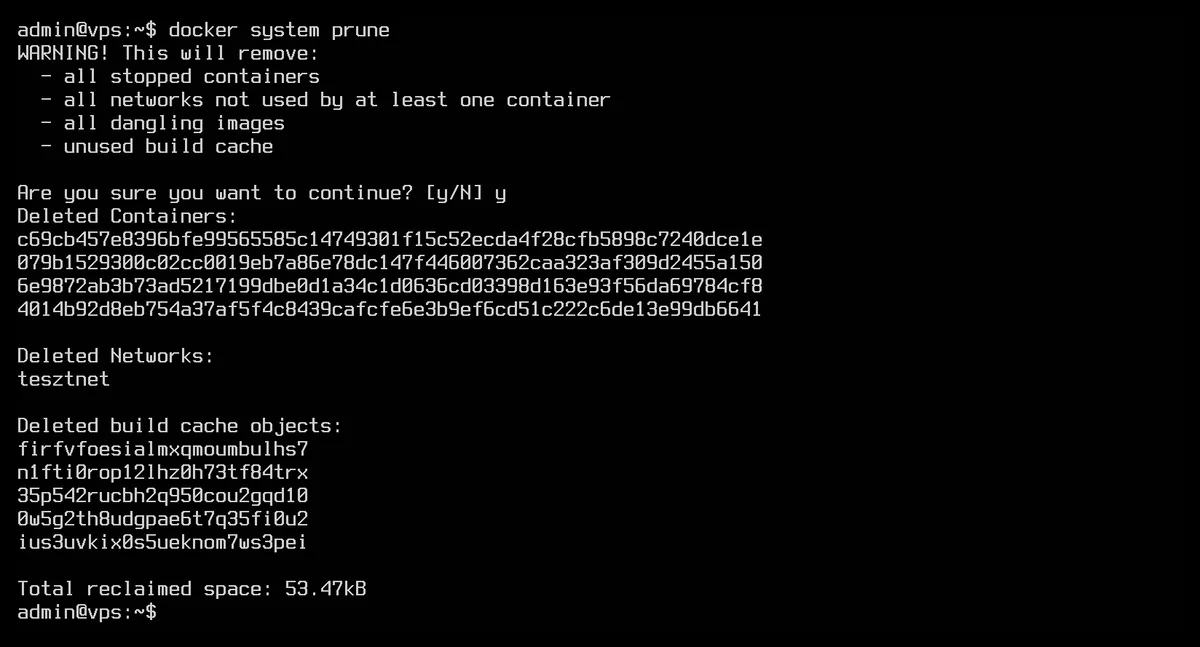
The image clearly shows that the standard docker system prune command often frees up very little space (53 kB in this case): the stopped containers are small, and the space is taken up by unused images and volumes. In the test, on the same machine, the docker image prune -a command freed up 492 MB.
Caution: system prune -a and –volumes
- The
docker system prunecommand first deletes stopped containers. If you have only temporarily stopped a container (usingdocker stopordocker compose stop), it will also be deleted, along with its configuration (ports, environment variables). This is not a problem for Compose projects, asdocker compose up -dwill recreate them; however, for a container started manually usingdocker run, you will need to re-enter the command. -adeletes any images that do not have a container, so Docker will download them again the next time it starts up. If you had kept an old version for restoration, that will also be deleted.- The
--volumescommand also deletes unnamed volumes, along with the stopped containers, in the same run. In the test, a stopped container and its associated unnamed volume were deleted with a singledocker system prune --volumescommand. If a database container (for example, from thepostgresormariadbimages) was started without specifying a volume, its data is stored in precisely such an unnamed volume, and running a clean-up while the container is in a stopped state will permanently delete it.
The named volumes are not deleted by the system prune --volumes command; to do this, you need to use docker volume prune -a, which you should only run if you are certain that you no longer need any of the volumes.
Filters: until and label
With the --filter switch, only older items or those with the specified tag are deleted:
# Unused images older than 24 hours
docker image prune -a --filter "until=24h"
# Stopped containers, networks, images and build cache older than 7 days
docker system prune -a --filter "until=168h"
# Only unused images labelled projekt=demo
docker image prune -a --filter "label=projekt=demo"
The value of until can be a duration (24h, 30m; it does not accept days, so 7 days is 168h) or a date (2026-11-01T00:00:00). In the test, for images, until was based on the time the image was downloaded, not the date it was created: an image created 7 months ago but downloaded on the same day remained when filtered with until=168h. The label is assigned to the images from the LABEL line in the Dockerfile.
Volumes do not support the until filter: the command docker volume prune --filter until=24h returns an error (invalid filter 'until'), and docker system prune --volumes --filter until=24h does not run either (The "until" filter is not supported with "--volumes"). Volumes can be filtered using the label filter.
Log files running amok
By default, container output is saved to individual JSON files, with no size limit. The log file of a container that logs frequently grows very quickly: in our test, a container writing continuously reached 1 GB in 10 seconds. You can view the location and size of the log file as follows:
docker inspect --format '{{.LogPath}}' containername
sudo du -h $(docker inspect --format '{{.LogPath}}' containername)
The sizes of all container logs, with the largest ones listed last:
sudo sh -c 'du -h /var/lib/docker/containers/*/*-json.log* | sort -h | tail'
Clearing the log without stopping the container:
sudo truncate -s 0 $(docker inspect --format '{{.LogPath}}' containername)
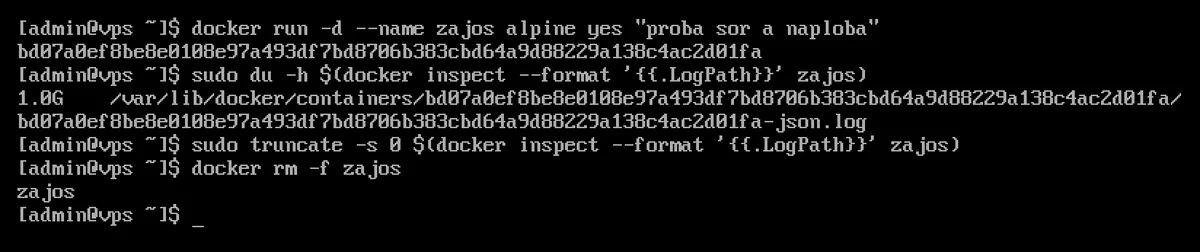
Do not delete the log file using the rm command. In our test, dockerd continued to keep the deleted file open: the space was not freed up, the log continued to grow invisibly (as shown by sudo lsof +L1 with the (deleted) flag), and docker logs returned an error (Error grabbing logs: ... no such file or directory). The space was freed up by restarting (docker restart) or deleting the container. This phenomenon is described in detail in the article The disk is full, but du doesn’t show it.
truncate is only a workaround. The permanent solution is to set the log size limit in the /etc/docker/daemon.json file ("log-opts": {"max-size": "10m", "max-file": "3"}), as described in the installation guide. This only applies to new containers; you can check the settings for an existing container as follows:
docker inspect --format '{{.HostConfig.LogConfig}}' containername
{json-file map[]} indicates an unlimited log, while {json-file map[max-file:3 max-size:10m]} indicates a limited log. You can also set a limit for a single container in the docker run command: --log-opt max-size=10m --log-opt max-file=3.
Regular cleaning using the systemd timer
The service and timer described below deletes unused images older than 7 days, deactivated containers and networks, and the build cache every Sunday at dawn. Volumes are deliberately left unaffected.
/etc/systemd/system/docker-prune.service:
[Unit]
Description=Delete unused Docker images, containers and build cache
Requires=docker.service
After=docker.service

[Service]
Type=oneshot
ExecStart=/usr/bin/docker system prune --all --force --filter "until=168h"
/etc/systemd/system/docker-prune.timer:
[Unit]
Description=Weekly Docker cleanup

[Timer]
OnCalendar=Sun 04:00
RandomizedDelaySec=30min
Persistent=true

[Install]
WantedBy=timers.target
Set-up and a test run:
sudo systemctl daemon-reload
sudo systemctl enable --now docker-prune.timer
systemctl list-timers docker-prune.timer
sudo systemctl start docker-prune.service
journalctl -u docker-prune.service
Because of Persistent=true, if the machine was switched off at the specified time, the cleanup will run the next time it starts up. If you prefer to use cron, add the following single line to the root crontab (sudo crontab -e):
0 4 * * 0 /usr/bin/docker system prune --all --force --filter "until=168h" > /dev/null
The article Crontab Syntax and Scheduled Tasks explains the cron syntax. Please note: this clean-up also deletes stopped containers if they were created more than 7 days ago. If you keep a container stopped for a longer period but wish to retain it, do not use this method, or refine the command to docker image prune -a --force --filter "until=168h".
What should you not delete?
- Do not manually delete the contents of the
/var/lib/dockerdirectory. Docker maintains a database recording the location of each layer, volume and container; manually deleting individual directories will corrupt this database, and the containers or images may become unusable. Always usedockercommands to delete files. Only delete the entire directory when uninstalling Docker. - You have named volumes without knowing what is inside them. Databases, uploaded files and application settings are typically stored in volumes. You can view the contents of a volume before deleting it:
docker run --rm -v kotetnev:/adat alpine ls -la /adat. Be sure to create a backup of any important data first. - Containers that have been stopped but are still required. In such cases,
docker image prune -aanddocker builder pruneare more targeted thansystem prune. - Images kept for restoration purposes. If you wish to revert to the previous version after an update, do not delete the old image until you are sure the new one is correct.
If you’re still running out of space after cleaning up Docker, checking your disk usage will help you identify what else is taking up space on your disk apart from Docker.