 English
 Magyar


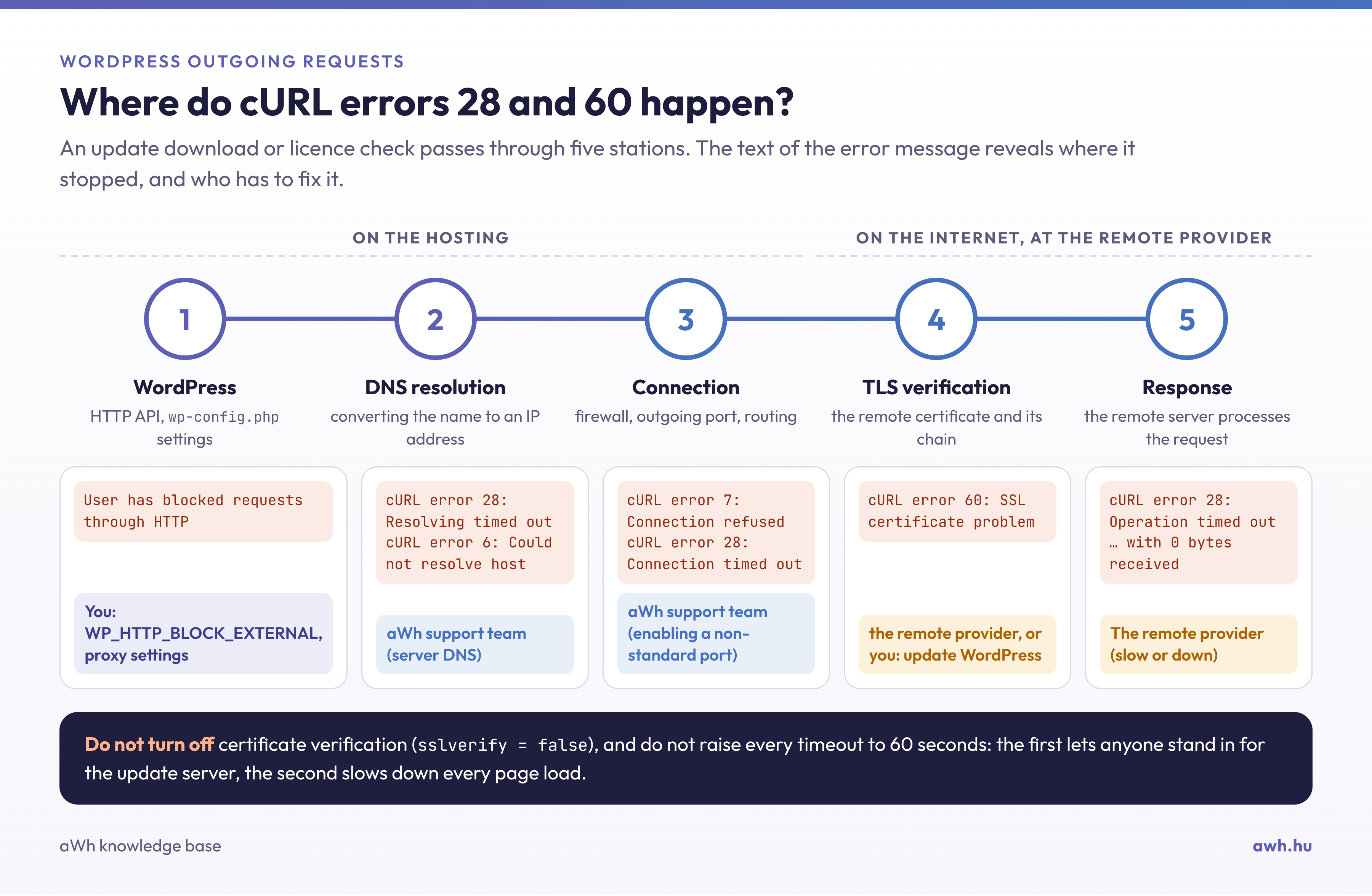
If a plugin update stops with the message: “Download failed. cURL error 28: Connection timed out after 10001 milliseconds”, or if a licence check or payment module logs the error “cURL error 60: SSL certificate problem: unable to get local issuer certificate”, WordPress was attempting to access another server and failed. Both messages originate from cURL, the library that PHP uses to send web requests.
- Error 28 always indicates a timeout: something along the way failed to respond before the time limit expired.
- Error 60 means that the connection was established, but the remote server’s certificate could not be verified.
The rest of the message explains where the request got stuck and who is responsible for resolving the issue: you, our support team or the third-party provider.
1. Note down the exact error
The error appears on the Plugins or Control Panel › Updates page, in the plugin’s own log, or on the Tools › Site Health page. For example, it might appear as follows: “Unable to reach WordPress.org”, with the cURL error and the IP address shown below it. Make a note of the error number, the text following the number, and the address the site was trying to reach.
2. Repeat the request from WordPress
The cPanel Terminal (Advanced group) or SSH uses the same PHP and WordPress as the website. In the website folder:
cd ~/public_html
wp eval '$r = wp_remote_get( "https://api.wordpress.org/core/version-check/1.7/" ); echo is_wp_error( $r ) ? $r->get_error_message() : wp_remote_retrieve_response_code( $r ), PHP_EOL;'
On a functioning website, the response is 200. Instead of WordPress.org, you can also enter the address of the plugin’s licence server or payment provider. Any status code, even 401 or 404, means that the network connection is working and the remote server has responded. The basics of WP-CLI are described in the article on using WP-CLI.
3. Repeat the process using curl, timing the operation
This runs independently of WordPress, thereby separating the WordPress configuration from the network:
curl -sS -o /dev/null --max-time 10 -w 'dns=%{time_namelookup} kapcsolat=%{time_connect} tls=%{time_appconnect} elso_bajt=%{time_starttransfer} ip=%{remote_ip} kod=%{http_code}\n' https://api.wordpress.org/core/version-check/1.7/
On our test hosting environment (aWh cPanel server):
dns=0.000184 kapcsolat=0.082131 tls=0.169085 elso_bajt=0.252814 ip=2620:109:b00a::4206:2afb kod=200
All values are in seconds elapsed since the start. In the event of an error, curl will also display an error message; the table shows where the error occurred:
| curl outputs the following | Where did you get stuck? | Who fixes it? |
|---|---|---|
curl: (28) Resolving timed out or curl: (6) Could not resolve host |
Domain name resolution (DNS) | aWh support team |
curl: (7) Failed to connect … Connection refused (immediately) |
The outgoing port is blocked | aWh support team |
curl: (28) Connection timed out |
firewall or network route | aWh support team |
curl: (28) Operation timed out … with 0 bytes received |
The remote server is not responding in a timely manner | the remote service provider |
curl: (60) SSL certificate problem: … |
certificate verification | See step 5 |
4. If curl works but WordPress does not
Two wp-config.php constants can block outgoing requests before they even start:
wp config get WP_HTTP_BLOCK_EXTERNAL
wp config get WP_ACCESSIBLE_HOSTS
wp config get WP_PROXY_HOST
The standard response to all three is that the constant has not been specified. If WP_HTTP_BLOCK_EXTERNAL is enabled, WordPress can only access its own website and the addresses listed in WP_ACCESSIBLE_HOSTS; in this case, the message will be ‘User has blocked requests through HTTP’. Add the required addresses separated by commas (using the * wildcard):
wp config set WP_ACCESSIBLE_HOSTS 'api.wordpress.org,*.wordpress.org,api.szolgaltato.hu'
A deactivated proxy server (WP_PROXY_HOST) causes the same timeout; if you are not using a proxy, delete it: wp config delete WP_PROXY_HOST.
5. Error 60: certificate
The text following ‘SSL certificate problem:’ explains the reason:
- “unable to get local issuer certificate”: the certificate store does not recognise the issuer, or the remote server is not sending the intermediate certificate.
- “Certificate has expired”: the remote server’s certificate has expired; the service provider must renew it.
- ‘Self-signed certificate in the certificate chain’: a device decrypts the request as it passes through (for example, a filtering proxy).
WordPress uses its own certificate store (wp-includes/certificates/ca-bundle.crt) for its own requests, which is updated when WordPress is updated. If your WordPress installation is out of date, please update it first. Then check what the remote server is sending:
echo | openssl s_client -connect api.szolgaltato.hu:443 -servername api.szolgaltato.hu -showcerts 2>/dev/null | grep -E '^ *[0-9] s:|^ *i:'
A valid chain consists of at least two elements (the server certificate and the intermediate certificate). If only the line 0 is visible, the intermediate certificate is missing from the remote server; this must be rectified by the service provider – please contact them with the command output. There is a separate article on intermediate certificates.
6. Outgoing ports
On our cPanel hosting servers, websites can freely access other servers via the standard ports (HTTP 80, HTTPS 443); on our test hosting environment, WordPress.org responded without any issues over IPv6. If a service uses a non-standard port (for example, https://api.szolgaltato.hu:8443), the connection is either immediately rejected by the firewall (cURL error 7) or times out (cURL error 28). In this case, please contact our support team: send us the output from step 3 along with the service’s address and port, and we will check whether it can be enabled.
Please also contact us if the domain resolution fails, or if the error only occurs occasionally (for example, every tenth request). Run the command in step 3 ten times in a row and let us know which value spikes.
7. Slow remote service: simply increase the time limit
If the kapcsolat and tls values are fast, yet the response is ‘Operation timed out … with 0 bytes received’, the remote server is slow. First, check the provider’s status page. If the slowness persists, you can increase the timeout for a single address using a ‘must-use’ plugin (wp-content/mu-plugins/szolgaltato-idokorlat.php):
<?php
/**
 * Plugin Name: Hosszabb időkorlát egy lassú API-hoz
 */
add_filter( 'http_request_args', function ( $args, $url ) {
    if ( 'api.szolgaltato.hu' === wp_parse_url( $url, PHP_URL_HOST ) ) {
        $args['timeout'] = 15;
    }
    return $args;
}, 10, 2 );
Keep it under 15 seconds: whilst a request is pending, it occupies a PHP process, and if a page is also waiting for this request, the visitor will have to wait as well.
Verification
Repeat step 2 for every address that returned an error; each one should return a status code, not a cURL error. Next, the Site Health test itself:
wp eval 'require_once ABSPATH . "wp-admin/includes/class-wp-site-health.php"; $r = WP_Site_Health::get_instance()->get_test_dotorg_communication(); echo $r["label"], PHP_EOL;'
The expected response: “Connection to WordPress.org successful”. Finally, try the update again on the control panel › Updates page.
What not to do
- Do not disable certificate verification (
sslverify=falseor thehttps_ssl_verifyfilter). The error message will disappear, but anyone who intercepts the connection may respond on behalf of the update server or the payment system. - Do not set all time limits to 60 seconds. This will not fix an incorrect DNS resolution or a blocked port, but it may slow down any page that calls an external service by that amount.