 English
 Magyar
 Deutsch



PostgreSQL is an open-source relational database management system. Many web applications (Django, Laravel, Nextcloud, n8n, Gitea) also work with PostgreSQL, while some (Odoo, Mastodon) work exclusively with it. It can be installed in a matter of minutes on your own KVM VPS from the distribution’s repository or from the PostgreSQL project’s own repository (PGDG).
This article walks you through the installation process on AlmaLinux and Ubuntu, followed by the common steps: creating a user and database, logging in with a password, remote access, backups and upgrading to a new major version. We tested these steps in November 2026 on AlmaLinux 10.2, AlmaLinux 9.8 and Ubuntu 26.04. Run the commands as a user with sudo privileges (see: Creating a user and granting sudo privileges).
If the application is running in a Docker container, PostgreSQL can also run alongside it in a container, all from a single compose.yaml file: this is demonstrated in the article on using Docker Compose. If you need a MySQL-compatible database, we have described how to install MariaDB in a separate article.
Which version comes from where?
At the time of testing, the latest major version of PostgreSQL was 18 (18.6), and the project supported major versions 14 to 18 (version 14 until 12 November 2026). Each major version receives updates for five years.
| System | In the system’s repository | In the PGDG repository |
|---|---|---|
| AlmaLinux 10 | PostgreSQL 16 (postgresql-server), PostgreSQL 18 (postgresql18-server) |
14–18 |
| AlmaLinux 9 | PostgreSQL 13 (basic), 15, 16 and 18 (postgresql:15, :16, :18 modules) |
14–18 |
| Ubuntu 26.04 | PostgreSQL 18 | 10–18 |
| Ubuntu 24.04 | PostgreSQL 16 | 10–18 |
| Debian 13 | PostgreSQL 17 | 10–18 |
We populated the Ubuntu 24.04 and Debian 13 lines based on the package lists; we did not install on these systems. In the PGDG repository, major versions older than 14 are no longer receiving updates.
Which one should you choose?
- The system repository, provided the major version contained therein is compatible with the application. On AlmaLinux 10 and 9, as well as on Ubuntu 26.04, the major version 18 is also sourced from here. The packages are updated via system updates, and on AlmaLinux, SELinux rules also apply to them (see below).
- Use the PGDG repository (
yum.postgresql.org,apt.postgresql.org) if the desired major version is not available in the system’s repository (for example, PostgreSQL 18 on Ubuntu 24.04, or an older major version required for an application), or if you wish to run multiple major versions side by side. All supported major versions are available in the PGDG repository.
A) Installation on AlmaLinux
From the system’s repository
On AlmaLinux 10, PostgreSQL 18 is available as a separate package with a version number (there is no module):
sudo dnf install postgresql18-server
The command sudo dnf install postgresql-server would install version 16. The two packages are mutually exclusive.
On AlmaLinux 9, you must select a module; otherwise, version 13 will be installed:
sudo dnf module enable postgresql:18
sudo dnf install postgresql-server
The data directory (the ‘cluster’) must be created manually on AlmaLinux, and the service must be started:
sudo postgresql-setup --initdb
sudo systemctl enable --now postgresql
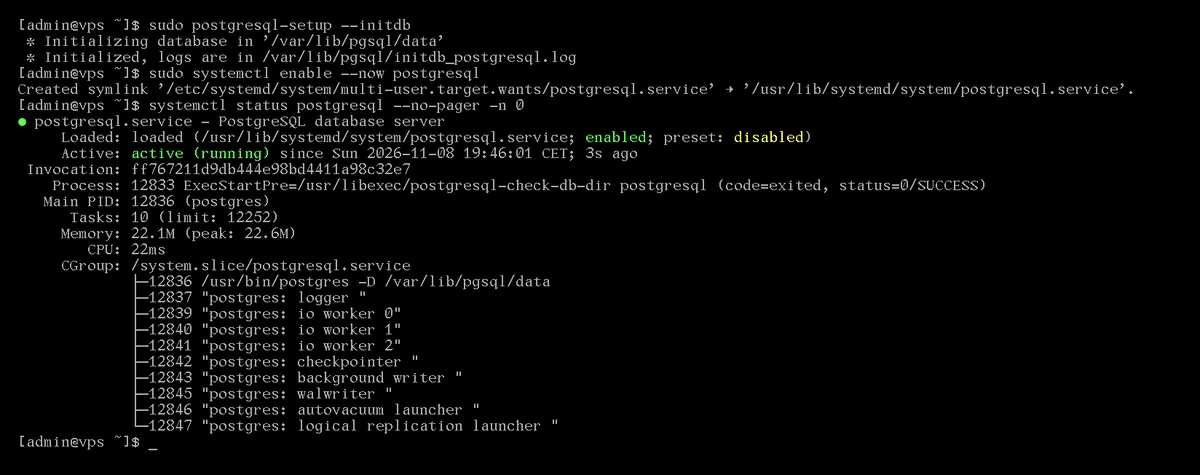
The service is called postgresql, and the data directory is /var/lib/pgsql/data, which also contains the configuration files (postgresql.conf, pg_hba.conf). The log is located in the /var/lib/pgsql/data/log/ directory, in files named according to the day of the week (for example, postgresql-Sun.log). Version 18.6 was installed on both systems for the test.
An important difference compared to Ubuntu and PGDG is that the AlmaLinux package configures ident authentication for internal TCP connections (127.0.0.1, ::1) on the machine, meaning that login via password is not possible by default. We will change this later, in the section on password-based login.
From the PGDG repository
Configuring the PGDG repository on AlmaLinux 10 on an x86_64 (Intel/AMD) machine; on AlmaLinux 9, the path is EL-9-x86_64, and on an ARM machine, it is EL-10-aarch64:
sudo dnf install https://download.postgresql.org/pub/repos/yum/reporpms/EL-10-x86_64/pgdg-redhat-repo-latest.noarch.rpm
sudo rpm --import /etc/pki/rpm-gpg/PGDG-RPM-GPG-KEY-*
sudo dnf install postgresql18-server
It was necessary to import the key manually during the test because, without it, the dnf, when processing the repository metadata, would stop with a ‘Signing key not found’ error.
On AlmaLinux 10, the names of the PGDG packages are the same as those in AppStream (postgresql18-server), but the PGDG repository has a higher priority, so the PGDG version was installed during the test (18.6-4PGDG.rhel10.2). The command rpm -q postgresql18-server shows which version was installed. On AlmaLinux 9, according to the PGDG documentation, the system module must first be disabled (sudo dnf -qy module disable postgresql); we did not test this.
The PGDG package uses different routes and a different service name:
sudo /usr/pgsql-18/bin/postgresql-18-setup initdb
sudo systemctl enable --now postgresql-18
| AlmaLinux repository | PGDG | |
|---|---|---|
| Service | postgresql |
postgresql-18 |
| Data directory | /var/lib/pgsql/data |
/var/lib/pgsql/18/data |
| Programs | /usr/bin |
/usr/pgsql-18/bin (psql can also be launched from /usr/bin) |
| Local TCP authentication | ident |
scram-sha-256 |
B) Installation on Ubuntu
From the Ubuntu repository
sudo apt update
sudo apt install postgresql
On Ubuntu 26.04, this installs the postgresql-18 package (18.6-0ubuntu0.26.04.1 in the test), while on Ubuntu 24.04 it installs the major version 16. Unlike with AlmaLinux, there is no separate initdb step here: the package immediately creates and starts a cluster named main. The clusters are listed by pg_lsclusters:
pg_lsclusters
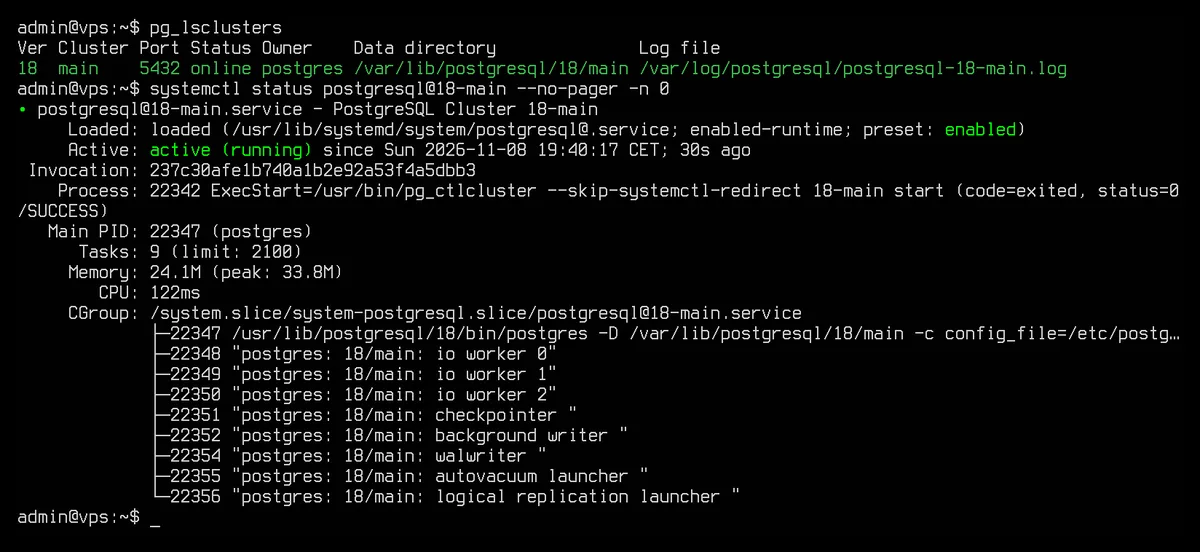
On Ubuntu (and Debian), multiple major versions and multiple clusters can run side by side on a single machine; therefore, each cluster has its own systemd unit: postgresql@18-main. The postgresql service is merely a collective unit that starts and stops all of them. You can manage a cluster as follows:
sudo systemctl restart postgresql@18-main
sudo pg_ctlcluster 18 main restart
The configuration files are not located in the data directory here, but in the /etc/postgresql/18/main/ folder (postgresql.conf, pg_hba.conf, and a conf.d subfolder for custom settings). The data is stored in /var/lib/postgresql/18/main, and the log is in the /var/log/postgresql/postgresql-18-main.log file. The package already configures scram-sha-256-based password authentication for internal TCP connections on the machine.
From the PGDG repository
The postgresql-common package contains a script that configures the PGDG repository:
sudo apt install postgresql-common
sudo /usr/share/postgresql-common/pgdg/apt.postgresql.org.sh
sudo apt install postgresql-18
The postgresql-17, postgresql-18. When the cluster version 18 was already running on the machine, installing version 17 did not create a new main cluster during testing; in this case, running sudo pg_createcluster 17 main --start will create one on the next available port (5433).
On Ubuntu 26.04, after setting up the PGDG repository, the PGDG version (18.6-1.pgdg26.04+2) became the update candidate instead of the system’s own postgresql-18 package, because it has a higher version number. The next apt upgrade will therefore replace it with the PGDG package; the major version remains the same, only the package source changes.
First login
The installation creates a postgres system user and a database superuser of the same name. On the machine, peer-based authentication via a Unix socket applies: the PostgreSQL user name must match that of the system user. You can therefore log in without a password as follows:
sudo -u postgres psql
Some useful psql commands:
| Command | What does it do? |
|---|---|
\l |
List of databases |
\du |
List of users (roles) |
\c appdb |
Switching to another database |
\dt |
List of tables in the current database |
\password appuser |
Setting or changing a password using hidden input |
\q |
log out |
Creating a user and database
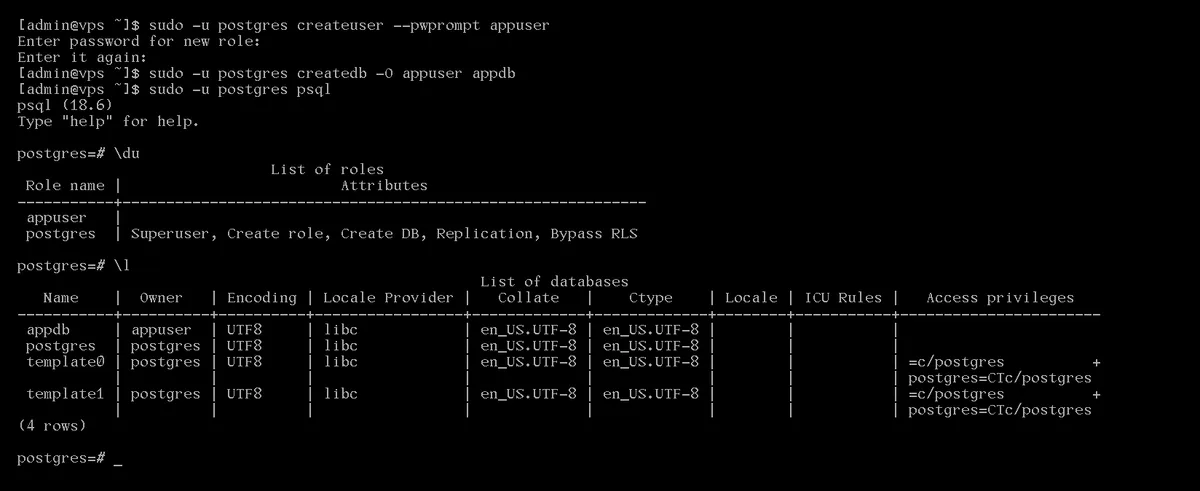
Create a separate user and a dedicated database for each application, and do not connect using the postgres superuser. Using the command-line tools:
sudo -u postgres createuser --pwprompt appuser
sudo -u postgres createdb -O appuser appdb
The --pwprompt option prompts for the password twice, with the characters hidden; the -O appuser option sets the user as the owner of the new database. The equivalent in SQL, using psql:
CREATE ROLE appuser LOGIN PASSWORD 'Hosszu-Egyedi-Jelszo';
CREATE DATABASE appdb OWNER appuser;
With the SQL version, the password may also be recorded in the psql command history (~/.psql_history); therefore, the \password appuser command or createuser --pwprompt is more secure. The result is displayed by \du and \l:
If the user is not the owner of the database. Since PostgreSQL 15, only the database owner can create tables in the public schema. If you transfer an existing database owned by someone else to a user, the creation of tables will fail with the error ‘permission denied for schema public’. In this case, grant rights to the schema:
sudo -u postgres psql -d masikdb -c "GRANT ALL ON SCHEMA public TO appuser"
Hungarian alphabetical order. The database collation rule is determined at creation; in our tests, it was set to en_US.UTF-8 on AlmaLinux and C.UTF-8 on Ubuntu. If the application relies on the database to sort Hungarian words, create the database with the Hungarian collation setting:
sudo -u postgres createdb -O appuser -T template0 -l hu_HU.UTF-8 appdb_hu
On AlmaLinux, you first need the glibc-langpack-hu package; without it, you’ll get the error ‘invalid LC_COLLATE locale name’. In the test, the hu_HU.UTF-8 database is sorted according to Hungarian rules (cukor comes before csiga, olló comes before öböl), while the en_US.UTF-8 database is not.
Password-protected login (pg_hba.conf)
Applications usually connect via TCP (localhost, port 5432), using a username and password. The pg_hba.conf file determines who can log in, from where and with what authentication method. PostgreSQL reads the lines from top to bottom, and the first matching line takes precedence.
# TYPE  DATABASE  USER  ADDRESS        METHOD
local   all       all                  peer
host    all       all   127.0.0.1/32   scram-sha-256
host    all       all   ::1/128        scram-sha-256
Authentication methods:
peer: via Unix sockets only. The system user name must match that of the database user; there is no password. This is whysudo -u postgres psqlworks, and whypsql -U appuser appdbreturns the error “Peer authentication failed for user ‘appuser’” if not run as the system user namedappuser. In this case, specify the-h localhostswitch, and the connection will be established over TCP using a password.ident: requests the same from an ident server over TCP; in practice, it is not possible to log in using a password. The AlmaLinux package configures this by default.scram-sha-256: a password authentication method that does not transmit the password over the network and stores only a salted hash on the server. This is the method used.md5: the old password method. PostgreSQL 18 marks it as deprecated; do not use it on new installations. According to the documentation, ifpg_hba.confspecifiesmd5but the password is already stored as a SCRAM hash (the default value forpassword_encryptionhas beenscram-sha-256since major version 14, and this was also the case in the test), PostgreSQL will authenticate using SCRAM.
On AlmaLinux, use the system package to change the host lines from ident to scram-sha-256-256’, then reload the settings:
sudo sed -i -E '/^host/ s/ident$/scram-sha-256/' /var/lib/pgsql/data/pg_hba.conf
sudo systemctl reload postgresql
Password-protected login then works as follows:
psql -h localhost -U appuser appdb
The application’s connection details are: host localhost or 127.0.0.1, port 5432, the database name, username and password specified above; in URL format: postgresql://appuser:jelszo@localhost:5432/appdb. In scripts, you can specify the password from the ~/.pgpass file (localhost:5432:appdb:appuser:jelszo, permissions 600) so that it does not appear in the command line.
Remote access
By default, PostgreSQL only accepts connections from within the machine (listen_addresses = 'localhost'). If the database is used by an application running on the same server, do not change this setting. From another machine, the more secure method is via an SSH tunnel; however, if direct access is required, three settings must be configured: the listen address, the pg_hba.conf rule and the firewall.
The more secure option: SSH tunnel
The tunnel connects a port on your own machine to the server’s address 127.0.0.1:5432 via SSH. No changes need to be made to PostgreSQL; the port remains closed to external access, and traffic is encrypted:
ssh -N -L 15432:127.0.0.1:5432 felhasznalo@szerver.pelda.hu
While this is running, you can connect to localhost:15432 on your own machine (using psql -h localhost -p 15432 -U appuser appdb, or via a graphical client such as DBeaver or pgAdmin, which can establish an SSH tunnel themselves). In the test, it was therefore possible to log in from another machine using a password, with the pg_hba.conf lines shown above. If you use this frequently, the tunnel can also be added to the SSH config file (using LocalForward).
Direct access
1. Listening address. On AlmaLinux, in the file /var/lib/pgsql/data/postgresql.conf (/var/lib/pgsql/18/data/postgresql.conf for PGDG); on Ubuntu, in a new file in the conf.d directory:
echo "listen_addresses = '*'" | sudo tee /etc/postgresql/18/main/conf.d/listen.conf
'*' listens on all addresses; you can also specify a specific IP address. A restart is required for the change to take effect (sudo systemctl restart postgresql), after which sudo ss -ltnp | grep 5432 will show the address 0.0.0.0:5432 (see: Listing open ports).
2. pg_hba.conf. Allow access from the remote machine, preferably restricting it to only the necessary database, using a specific user and IP address:
host appdb appuser 203.0.113.10/32 scram-sha-256
To do this, simply reload the service (sudo systemctl reload postgresql). If there is no matching entry for a connection, the error message will state: “no pg_hba.conf entry for host “…”, user “appuser”, database “postgres”, no encryption”. The 0.0.0.0/0 address range would allow access from the entire internet; do not use it.
3. Firewall. Only open port 5432 from the remote machine’s IP address. On AlmaLinux (firewalld):
sudo firewall-cmd --permanent --add-rich-rule='rule family="ipv4" source address="203.0.113.10/32" service name="postgresql" accept'
sudo firewall-cmd --reload
On Ubuntu (ufw):
sudo ufw allow from 203.0.113.10 to any port 5432 proto tcp
If ufw is not yet enabled, you must first allow SSH (sudo ufw allow OpenSSH), otherwise you will lock yourself out after running sudo ufw enable. The basics of the firewall are covered in the article on configuring the VPS firewall.
Encryption. The AlmaLinux package does not enable TLS by default (ssl = off), so the connection is unencrypted; this is also indicated by the phrase ‘no encryption’ in the error message above. The Ubuntu package starts with ssl = on, using the system’s self-signed (snakeoil) certificate. For a direct connection over the internet, configure your own certificate (ssl_cert_file, ssl_key_file) and set the pg_hba.conf line to hostssl-re; or continue using the SSH tunnel.
SELinux on AlmaLinux
AlmaLinux’s own PostgreSQL package runs as a restricted (postgresql_t) process under SELinux; therefore, if you change the port or the data directory, you must also inform SELinux. In the test, after setting the port = 5433, the service failed to start, and the log showed avc: denied { name_bind }. The solution:
sudo dnf install policycoreutils-python-utils
sudo semanage port -a -t postgresql_port_t -p tcp 5433
If the data directory is located elsewhere (for example, on a separate disk, /srv/pgdata), you must update the PGDATA variable in the systemd unit file and assign the appropriate SELinux label to the directory:
sudo systemctl edit postgresql
# into the file that opens:
# [Service]
# Environment=PGDATA=/srv/pgdata
sudo install -d -o postgres -g postgres -m 700 /srv/pgdata
sudo semanage fcontext -a -t postgresql_db_t "/srv/pgdata(/.*)?"
sudo restorecon -R /srv/pgdata
sudo postgresql-setup --initdb
sudo systemctl start postgresql
Without the label, the service failed to start with the error avc: denied { getattr }. The article on SELinux ‘Permission denied’ errors explains how to troubleshoot such errors. The programs in the PGDG package (/usr/pgsql-18/bin) were not assigned a SELinux label during the test, so PGDG PostgreSQL ran without restrictions (unconfined_service_t) and started on a different port or with a different data directory even without the steps described above.
Basic configuration
The default PostgreSQL settings are designed for machines with limited memory: in the test, shared_buffers (PostgreSQL’s own cache) was set to 128MB. The documentation recommends approximately 25% of the total memory as a starting point; on a 2 GB server, for example, this would be 512 MB:
sudo -u postgres psql -c "ALTER SYSTEM SET shared_buffers = '512MB'"
sudo systemctl restart postgresql
sudo -u postgres psql -c "SHOW shared_buffers"
The ALTER SYSTEM command writes the value to the postgresql.auto.conf file, which overrides postgresql.conf; do not edit this file manually. A restart is required to change shared_buffers, while a reload is sufficient for most other settings. Plan your memory allocation in conjunction with your other services to ensure there is sufficient memory left for the web server and PHP (see: Out of memory: OOM killer, the free command and the swap file). For finer tuning (work_mem, effective_cache_size, max_connections), you’ll also need to measure the load; this goes beyond the scope of this article. If your application frequently retrieves the same data, a Redis or Valkey cache can also take some of the load off the database.
Backup and restore
The database backup in a compressed, proprietary format, from which pg_restore can restore the database:
sudo -u postgres pg_dump -Fc appdb -f /var/lib/pgsql/backups/appdb.dump
On Ubuntu, the postgres user’s home directory is /var/lib/postgresql; save the backup there or in another directory to which the postgres user has write access. Restoring to a new, empty database:
sudo -u postgres createdb -O appuser appdb_vissza
sudo -u postgres pg_restore -d appdb_vissza /var/lib/pgsql/backups/appdb.dump
If you want a text-based SQL file (for example, to transfer it to another machine or view its contents), compress the output of pg_dump and restore it using psql:
sudo -u postgres pg_dump appdb | gzip > appdb.sql.gz
gunzip -c appdb.sql.gz | sudo -u postgres psql -d appdb_vissza
pg_dump does not back up users and their passwords, only the contents of the database. These are backed up by pg_dumpall; with the --globals-only switch, it backs up only the users and their privileges; without it, it backs up the entire cluster, including all databases:
sudo -u postgres pg_dumpall --globals-only > globals.sql
sudo -u postgres pg_dumpall | gzip > osszes.sql.gz
In the test, we successfully restored the above backups, including the tables and accented characters. You can schedule regular backups using crontab, and you should also keep a copy of the backup on a separate machine (see: How do I back up my VPS?).
Major version upgrade
Minor version updates (e.g. 18.5 → 18.6) are carried out via the standard system update process (see: System update using dnf and apt); no changes to the data are required. When upgrading to a major new version (e.g. 16 → 18), the data directory must be converted. Always make a full backup using pg_dumpall-lal` beforehand.
On Ubuntu and Debian, this is handled by pg_upgradecluster. In the test, we upgraded a version 17 cluster to version 18; first, you must delete the empty, automatically created cluster for the new major version:
sudo pg_dropcluster 18 main --stop
sudo pg_upgradecluster -m upgrade 17 main
pg_lsclusters
The default method (-m dump) works by making a backup and restoring; -m upgrade uses the faster pg_upgrade program. The new cluster has taken over the old one’s port, while the old one remains in a stopped state. Once everything is working, the old one can be deleted: sudo pg_dropcluster 17 main.
On AlmaLinux 10, the postgresql18-upgrade package includes the old (version 16) server for pg_upgrade. In testing, the following sequence worked:
sudo systemctl stop postgresql
sudo dnf swap postgresql-server postgresql18-server
sudo dnf install postgresql18-upgrade
sudo PGSETUP_INITDB_OPTIONS="--no-data-checksums" postgresql-setup --upgrade
sudo systemctl start postgresql
The --no-data-checksums switch is required because PostgreSQL 18 creates the new cluster with data checksums by default, whereas older major versions do not; without this, the postgresql-setup --upgrade command would fail with the error “old cluster does not use data checksums but the new one does”. Please also note that after the conversion, postgresql.conf and pg_hba.conf will revert to their default settings: the old configurations and data will be moved to the /var/lib/pgsql/data-old directory; please copy your modifications from there. On AlmaLinux 9, the version 18 repository contains the postgresql-upgrade package; we have not tested this version. If you are also upgrading AlmaLinux to a major release, the article on ELevate will help.
Which package should you choose?
The database for a small application will run well on a KVM VPS shared with the web application, provided you allocate memory so that both the PostgreSQL cache and the application have sufficient resources. If the database is large or handles many concurrent connections, choose a larger VPS plan or move it to a separate server. If you’re not sure which option is right for your application, please get in touch – we’ll help you decide.