 English
 Magyar
 Deutsch
 Slovenščina


A WordPress site can look flawless from the outside while plugins that haven’t been updated for years run on it, fatal errors pile up in the log, and some visitors see a half-loaded page. These problems rarely show on the homepage, and that is exactly why they stay around for months.
We wanted to know how much of this an AI coding assistant can uncover and fix on its own without breaking anything along the way. We put together a deliberately outdated WooCommerce shop on our cPanel hosting test account, made a staging clone of it in WP Toolkit, and had the AI agent Anthropic Claude Code audit it, update it and give it a fresh look. In this article, we describe what it found, what it fixed, what we had to decide for it, and what you can take from all this if you want to sort out your own old site.
The starting point: a 2023 online shop
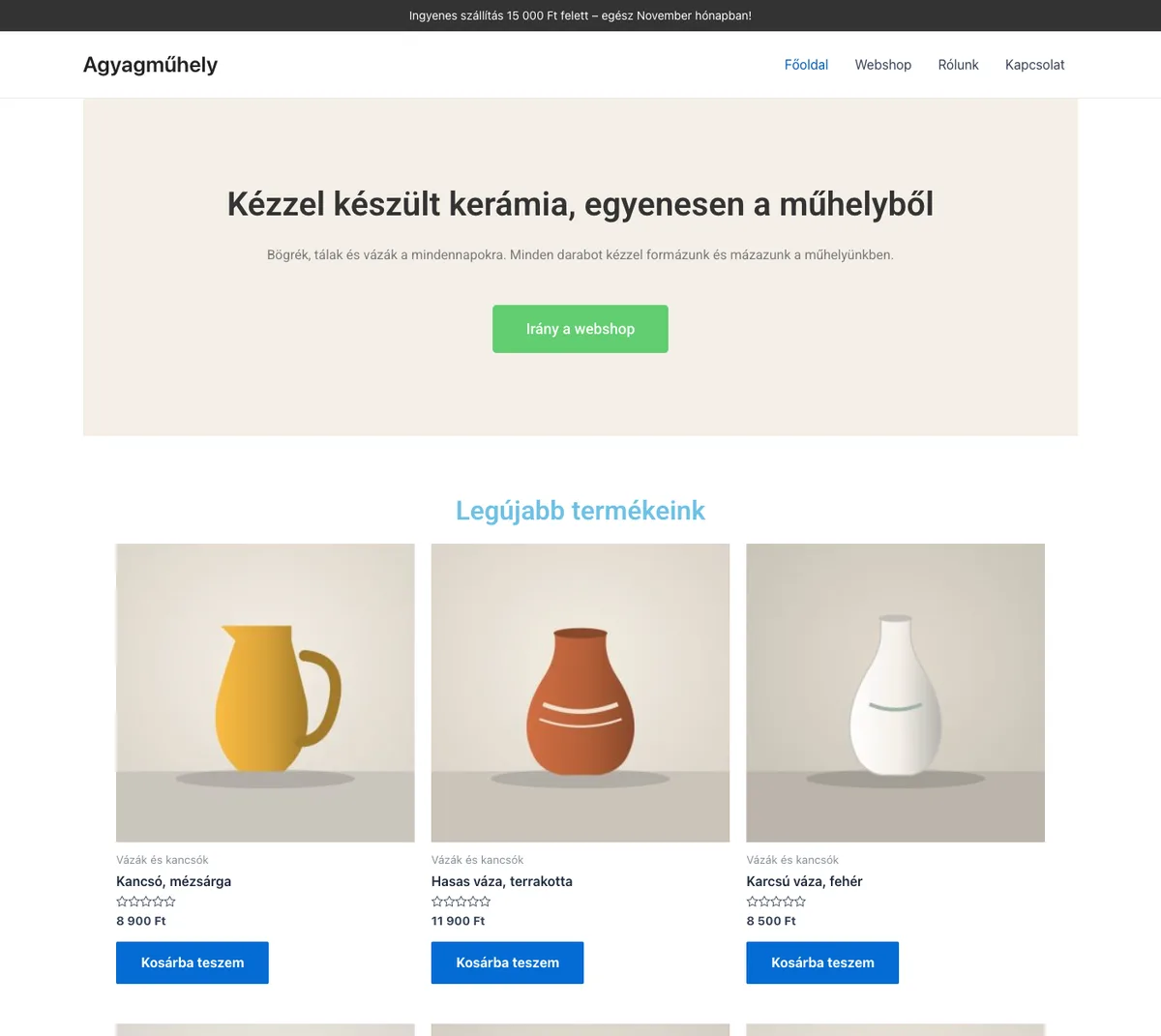
The test site was a fictional ceramics shop, “Agyagműhely” (“Clay Workshop”): nine products, a homepage built with Elementor, a contact form and cash on delivery. We installed WordPress and the plugins in their spring 2023 versions, just as they would be on a site built back then and left alone ever since:
| Components | Version at the start of the test |
|---|---|
| WordPress | 6.2.6 |
| PHP (on the server) | 8.4 |
| Astra theme | 4.0.2, with a custom child theme |
| Elementor | 3.12.2 |
| WooCommerce | 7.6.1 |
| Contact Form 7 | 5.7.5.1 |
| Yoast SEO | 20.5 |
| Starter Templates | 3.2.4 |
| UpdraftPlus, Classic Editor, WP Super Cache | 1.23.3, 1.6.3, 1.9.4 |
In the child theme, we put a few code snippets of the kind shop owners tend to copy from blogs and forums: a promo bar above the header that shows the current month, and an “Order today and it can be with you by …” line on the product page. We wrote the code for the test, but its bugs are very true to life.
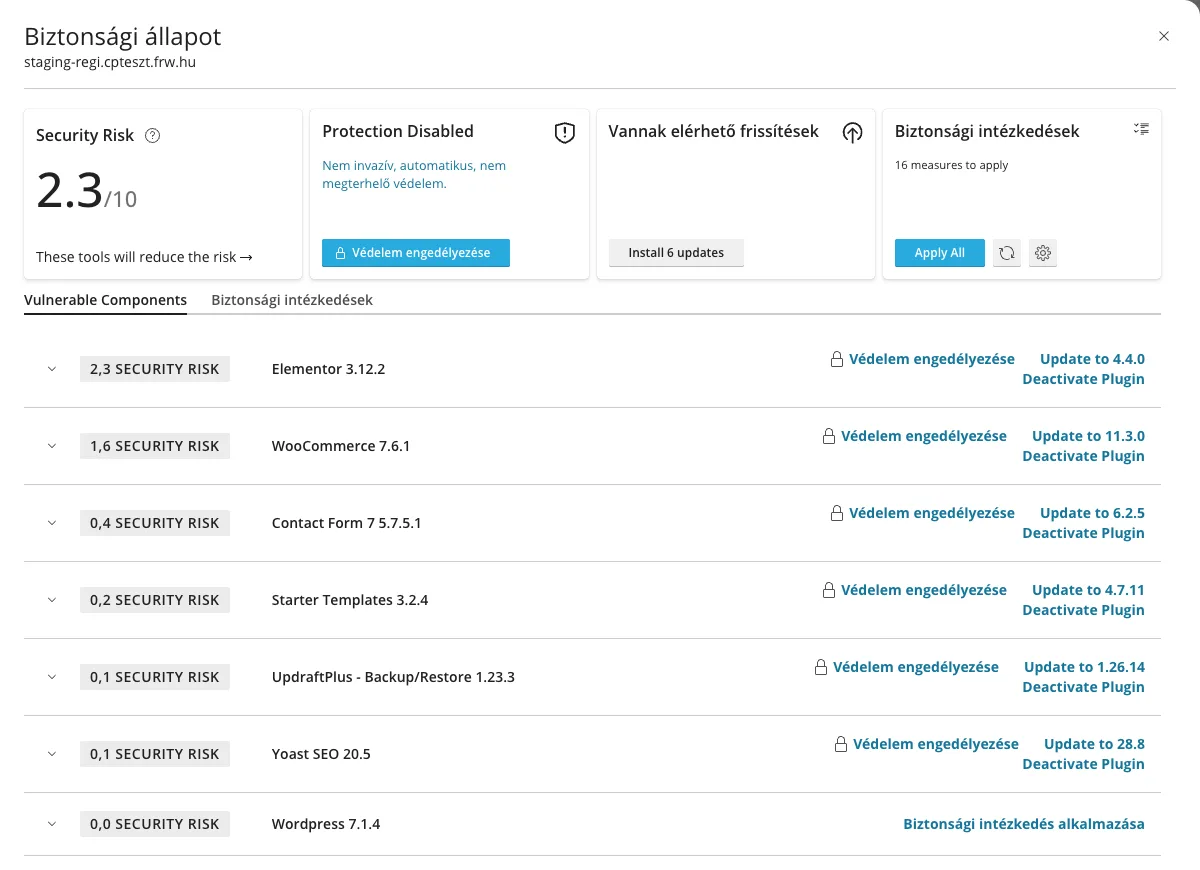
The first surprise came before the AI even started. When WP Toolkit detected the site, it immediately updated the WordPress core from 6.2.6 to 7.1.4, even though automatic updates were disabled in the wp-config.php file. By default, WP Toolkit installs every WordPress update (minor and major alike, the “Yes, all (minor and major) updates” option) automatically on the sites it manages, but leaves plugins to their own settings. This produced a situation that is very common in real life too: an up-to-date WordPress core alongside plugins that are two or three years old. Our article on automatic plugin updates shows how to set this per site.
Step one: backup and staging clone
Before changing anything, we made a backup with the WP Toolkit Back Up / Restore button (81 MB, into the wordpress-backups folder of the hosting account), then used the Clone feature to copy the site to a new subdomain. The clone gets its own database and search engine indexing is turned off on it, so you can experiment on it safely. The steps are described with screenshots in our knowledge base article on creating a staging site, and the general rules of using staging in this blog post.
Claude Code ran on our own computer and issued its commands in the shell of the hosting account: WP-CLI, grep, curl and PHP. We gave it the shell through the cPanel Terminal icon, but exactly the same environment is available over SSH. Of the aWh hosting plans, cP Premium, cP Pro, cP Pro 100, WP Premium and WP Pro include SSH; the setup is described in our article on using WP-CLI.
Step two: an audit without changes
We didn’t start with “update the site”. The first instruction asked only for an investigation:
Examine the WordPress installation in the staging folder. Look for outdated plugins and themes, custom code, parts that are not compatible with PHP 8.4, recurring errors in the log and anything that runs needlessly. Give the evidence for every finding, and keep confirmed bugs separate from possible risks. Do not change anything: no files, no plugins, no database.
The AI queried the versions and the available updates, verified the WordPress and plugin files against the official checksums, opened the main pages and a few REST API endpoints, then went through the new lines in the PHP error log. It examined the autoloaded options, the background tasks, the child theme code and the scripts and fonts loaded by the homepage. It then wrote and ran a browser test that clicks through a purchase: product page, add to cart, cash on delivery order and finally the contact form.
What the audit found
| Finding | Evidence |
|---|---|
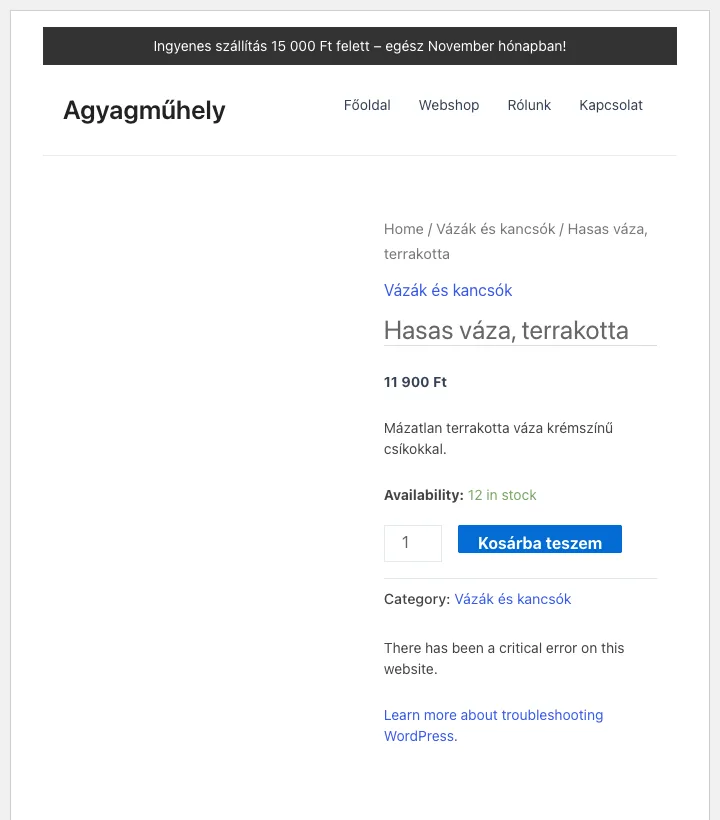
| The product page breaks | Every product page returned HTTP 500. The child theme function expected a parameter of type WC_Product, but the WooCommerce hook passes an empty string, so PHP aborted the page with a TypeError. |
| An Elementor endpoint returns a 500 error | A request to /wp-json/elementor/v1/globals caused a fatal PHP error: Call to undefined method WP_Error::get_data(), in the Elementor compatibility code of the old Astra version. |
| Checkout in English | The site language was en_US; the Hungarian language packs were installed but not in use, so the cart and checkout spoke English. |
| English month name in the Hungarian bar | setlocale() returned false because the server has no hu_HU locale, so strftime() wrote “November”. strftime() has been deprecated since PHP 8.1 and utf8_encode() since PHP 8.2, and the latter would also mangle an accented month name (“március”). |
| PHP 8.4 deprecations | A PHP check with full error reporting revealed an implicitly nullable parameter, and Elementor wrote similar messages to its own log. Web PHP does not log deprecation notices, so they did not appear in the error log. |
| Vulnerable plugins | WP Toolkit flagged six vulnerable components. The highest risk was Elementor 3.12.2 (2.3/10), followed by WooCommerce 7.6.1 (1.6/10). |
| Components running needlessly | The Starter Templates plugin had not been needed since the site was built, yet it was still active. WP Super Cache was active, but caching was turned off, so the cache loader ran needlessly on every request. On top of that, there were two inactive plugins and four old default themes in the installation. |
| Fonts from Google’s servers | Elementor loaded the Roboto and Roboto Slab fonts, both in 18 weights, directly from Google’s servers. This also sends the visitor’s IP address to Google and slows the page down. |
| Poor contrast | The white text on the button had a contrast of 1.99:1, the pale blue heading 2.02:1. WCAG level AA requires at least 4.5:1 for normal text. |
The product page bug was brought to light by the browser test, not by opening the homepage. Despite the error, the visitor still saw the product name, the price and the add-to-cart button; only the product image, the bottom of the page and the footer were missing, and in their place was the WordPress “critical error” message. At a quick glance, this is easy to miss, but search engines and shoppers get a broken page. If you come across something like this on your own site, our article on the WordPress debug mode will help you track it down.
What it did not consider a problem
A good audit lists not only the problems but also what turned out to be fine. The autoloaded options totalled 75 KB (243 rows), which is no problem for a shop of this size, so it did not recommend a clean-up. It classed the checksum mismatch of the Hello Dolly plugin as a false alarm, as this plugin comes bundled with the WordPress core rather than from the plugin directory. The only failed background task was an old migration step that had no effect on how the site worked. If your own site has more autoloaded data, this knowledge base article explains how to review it.
Step three: fixing one step at a time
We didn’t run the updates all at once. If six plugins and a theme are updated at the same time and something breaks afterwards, there is no way of knowing which one caused it. So the instruction read:
Make the fixes one by one, starting with the lowest-risk one. After each step, check the HTTP status of the main pages and the Elementor endpoint and the new lines in the PHP error log, and stop if a new error appears.
| Step | What the AI did | Result |
|---|---|---|
| 1. Custom code and language | Rewrote two functions of the child theme and set the site language to Hungarian | The product page returned 200 instead of 500 |
| 2. Clean-up | First checked whether anything depended on Starter Templates (only one of Astra’s admin menu items referred to it), then deleted it, WP Super Cache, the two inactive plugins and the four old themes | When deactivated, WP Super Cache removed the WP_CACHE setting and its loader by itself |
| 3. Astra 4.0.2 → 4.14.3 | Updated the theme and located the fix in it | The Elementor endpoint returns the correct 401 response instead of 500, with no new log lines |
| 4. Elementor 3.12.2 → 4.4.0 | Update, then the Elementor database update (wp elementor update db, 4 steps) |
The homepage screenshot is identical before and after |
| 5. WooCommerce 7.6.1 → 11.3.0 | Update, then wp wc update (61 database steps) |
The full purchase test passes, with Hungarian texts |
| 6. The other plugins | Contact Form 7, Yoast SEO, UpdraftPlus, Classic Editor and the language packs | No plugin shows a pending update, and the error log is empty |
The child theme fix is worth a closer look, as it shows well what AI is good at with old code. We expected a simple replacement, but the AI found more problems than that: wp_date() writes the date in the site’s language, so there is no need for the server’s locale, and since the day name now appears in Hungarian, it also noticed that the sentence needs the inflected form of the day, as Hungarian grammar requires (“kedden”, meaning “on Tuesday”, rather than the bare “kedd”):
// The hook passes no product: the old WC_Product type of the parameter caused the TypeError.
add_action( 'woocommerce_single_product_summary', 'agyag_szallitas', 25 );
function agyag_szallitas() {
	$napok = array( 1 => 'on Monday', 'on Tuesday', 'on Wednesday', 'on Thursday', 'on Friday', 'on Saturday', 'on Sunday' );
	$nap   = current_datetime()->modify( '+2 weekdays' );
	printf( '<p class="szallitas">Order today and it can be with you %s.</p>', esc_html( $napok[ (int) $nap->format( 'N' ) ] ) );
}
For the Astra bug, the AI compared the code of the old and the new version and found the condition that brings the fix. The new version checks whether the REST request was successful before touching its data:
if ( is_wp_error( $response ) || ! $response instanceof \WP_REST_Response ) {
	return $response;
}
It could also have written this line into the old theme file, but a fix like that is overwritten by the next theme update, and until then nobody knows that the theme has been modified. The official update was the better solution.
An error we did not expect
At the end of the WooCommerce update, the WP-CLI process stopped with a fatal error: the Elementor loader was looking for a WooCommerce file that no longer exists in the new version. The update completed nevertheless. The AI did not leave it at that: it used checksums to prove that the WooCommerce and Elementor files were complete, ran the database update, and only moved on after the full purchase test had passed without errors. The error occurred inside the update process, where the old and new files were mixed for a moment, and it did not affect how the site worked. The same error occurred in the same way on the live site, and did no harm there either. If your site does not load after an update, this article will help.
One small thing was not fixed by the updates: after a successful submission, the contact form said thank you in English. Contact Form 7 saves the form messages to the database when the form is created, and a Hungarian language pack installed later does not overwrite them. The AI noticed this in the browser test and reset them to the default Hungarian texts.
Step four: a new look from the existing elements
Refreshing the look did not need a new theme or a rebuilt site. This is what we gave the AI:
Refresh the look of the shop without changing the products, the pages or the Elementor content. Set the colours and fonts in the global settings, not one by one, make the contrast reach WCAG level AA, and don’t load anything from Google’s servers.
The AI changed the colours and fonts where the page elements inherit them from: in Elementor’s global colours and fonts (Site Settings), and in Astra’s global palette, which colours the WooCommerce buttons and the links. Instead of the old green and blue, a clay-like terracotta became the primary colour, on which white text has a contrast of 7.47:1 (meeting the AAA level too), with dark brown for the text. For the headings, it chose the Lora font (SIL Open Font License), served from the child theme on the hosting account itself, and turned off Elementor’s Google Fonts loading. A few lines of CSS went into the child theme’s stylesheet: rounded buttons, framed product cards with a subtle shadow, a dark promo bar, and a version without animation for visitors who prefer reduced motion.
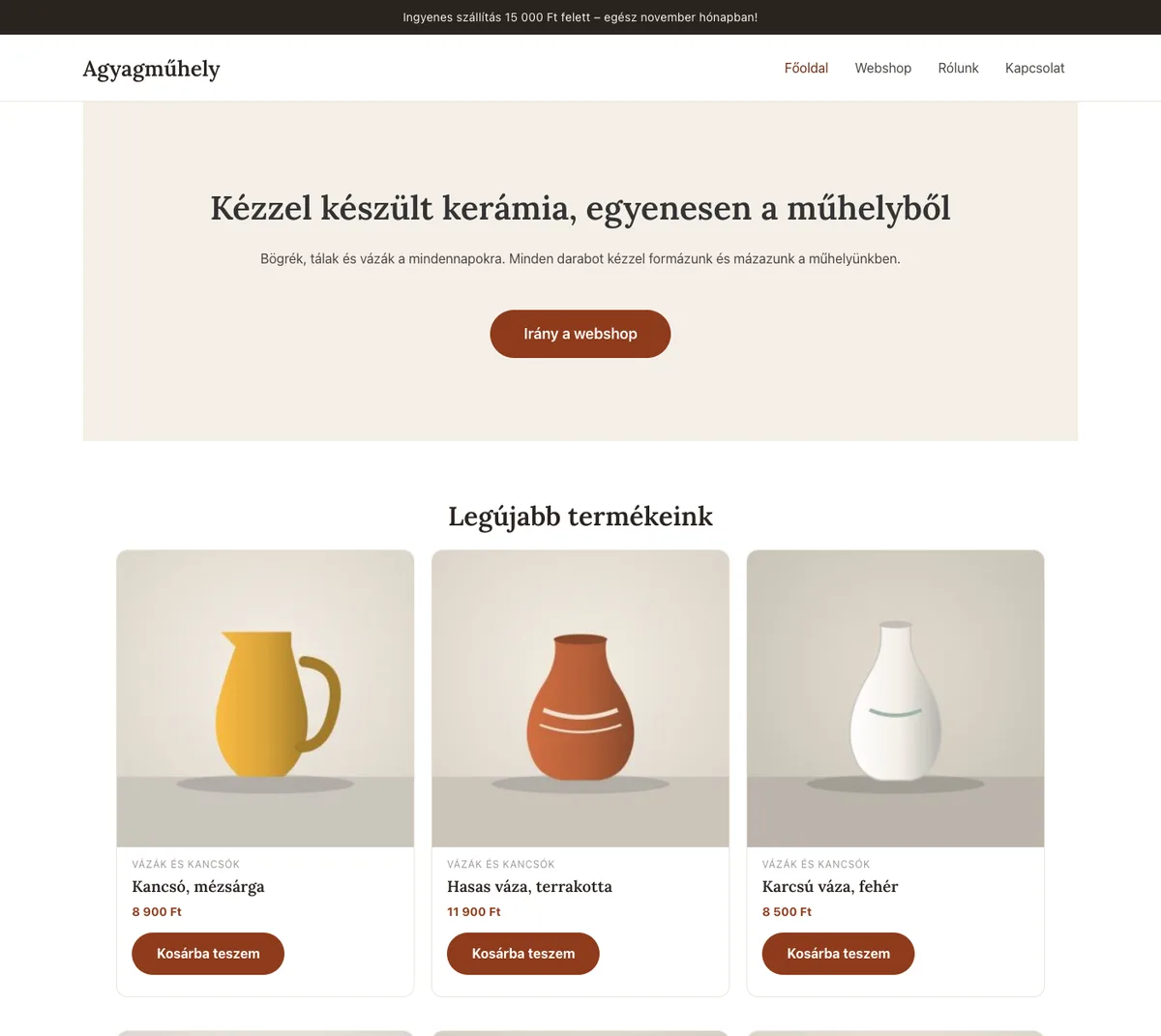
After the change, the homepage no longer requested a single file from Google’s servers, the PHP error log stayed empty, and the purchase test went through just as before.
Step five: going live on an online shop
With the WP Toolkit Copy Data feature, you can transfer the changes made on staging to the live site in one click. With an online shop, however, you have to be careful: if you copy the database as well, it overwrites the orders, registrations and messages received since the staging clone was made. On a brochure site this is rarely a problem, but on a working shop it means data loss.
So after a backup, we repeated on the live site the same sequence of steps we had already tried on staging: we copied over the child theme files and ran the updates and database steps in the same order. Before the run, we put the site into maintenance mode, but it switched itself off during the updates, as the WordPress updater deletes the maintenance flag file at the end of every update, including the one we had created. On a low-traffic shop this is not a problem, but on a bigger one it is worth scheduling the updates for a quieter period. During the whole run, only one line was added to the error log on the live site (a “headers already sent” warning resulting from the updater’s error), and afterwards the purchase test and the contact form worked just as flawlessly as on staging.
What did we learn?
Use AI not as a magic wand, but as a careful, fast technician. Most of the time was not spent on the fixes, but on finding out what the real problem was. This is where AI is strong: it reads through the log, follows the call chain to the faulty line, compares the code of two versions, and writes a test in moments that a person would rarely write by hand for a small shop.
Start with read-only access. In the first instruction, state that it must not change anything, and ask for evidence for every claim. That way you first get a list that you decide on, instead of having to work out afterwards what has changed.
One change at a time, then measure. In our case, the measurement was the HTTP status of eight URLs, the number of new log lines and a purchase test. It is little work, and thanks to it we knew at every step what had improved and whether anything had broken in the meantime.
A 200 status on the homepage is no proof. The most serious bug, the broken product page, only came to light when the test clicked through a purchase. And web PHP did not log the deprecation notices at all; only reviewing the code and a stricter PHP check revealed them. Our article on PHP 8.5 covers the risks of changing PHP versions in more detail.
Some decisions remain yours. The AI pointed out that UpdraftPlus backups may be unnecessary on top of the hosting account’s own backups, and that Classic Editor is perhaps not needed on an Elementor site, but it did not delete them, as that depends on how you work with the site. The same goes for the look: the AI suggested the colours and the font, but whether they suit your brand is your decision.
Think about what it has access to. An AI agent working in the shell of your hosting account sees the same as you do: the database password in wp-config.php, your customers’ data and your emails too. That is why we had it work on a staging clone, and why it is worth reading the commands it runs before you approve them.
How can you do this on your own hosting?
You don’t need anything special, just the cPanel tools:
- WP Toolkit in every cPanel hosting and WordPress hosting plan: backups, cloning, vulnerability checks and updates in one place. Managing updates is covered in this knowledge base article, and vulnerable plugin warnings in this one.
- Shell and WP-CLI in the plans with SSH, in the cPanel Terminal or with an SSH key on port 4231 (here’s how to set up the key). A tip to pass on to the AI:
wp db queryandwp db exportdo not run on the hosting, as theproc_open()PHP function is disabled on the server. So have it query the database with thewp evalcommand or themysqlandmysqldumpclients instead. - A backup before the big steps: besides the WP Toolkit backup, you can also restore from the hosting account’s own backups; you can read about this in this article.
If you don’t have the time or the inclination for this, or can’t work out what the real problem is with an old site, get in touch and we’ll help you find a safe order of steps.