 English
 Magyar
 Deutsch



You can access both the cPanel hosting control panel and the webmail interface via your browser; you do not need to install any software. This article summarises the URLs you can use to log in, the username and password you need to enter, and what to do if you are unable to log in.
What details do you use to log in?
| Interface | Username | Password |
|---|---|---|
| cPanel | your hosting username (not your domain name, not your email address) | The cPanel password |
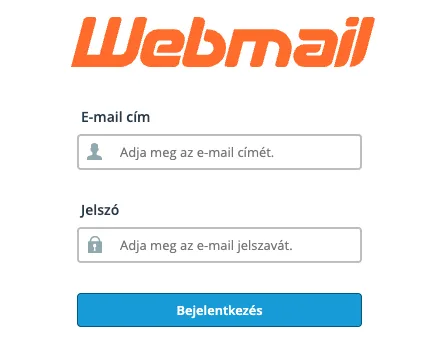
| Webmail | the full email address, for example info@pelda.hu |
the password for the relevant email account |
You can find your cPanel username in the client portal: open your hosting account under Services and look at the Username line on the Hosting Information tab. The passwords of the mailboxes are separate from the cPanel password: you create a mailbox in cPanel and change its password there too (creating an email account in cPanel).
Log in via the client portal without a password
The easiest way is via the client portal: once you’ve logged in there, you won’t need to enter a separate password for cPanel.
- Log in to the client portal and open your hosting account under Services.
- Click on the Log in to cPanel button. cPanel will open in a new tab, with you already logged in.
If you use two-factor authentication on the client portal, this method is also protected by it.
Log in via the direct URL
cPanel and webmail are also accessible via your domain. Replace pelda.hu with your own domain:
| Title | What is it for? |
|---|---|
https://pelda.hu/cpanel |
The easiest-to-remember address redirects you to the cPanel login page |
https://cpanel.pelda.hu |
It opens on the standard port 443, so it will still work even if a corporate or public network blocks port 2083 |
https://pelda.hu:2083 |
a cPanel’s own port; the unencrypted port 2082 redirects to this one |
https://pelda.hu/webmail |
The webmail login page |
https://webmail.pelda.hu |
Webmail is available on port 443 |
https://pelda.hu:2096 |
The webmail’s own port |
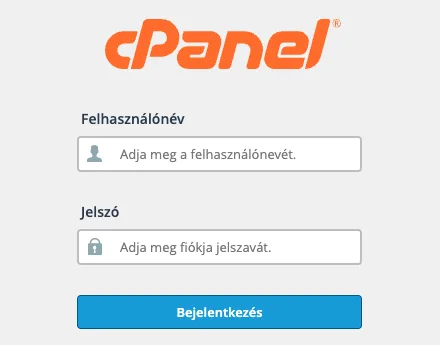
You can choose the language of the login page from the list at the bottom (more languages are behind …); the browser remembers your choice. After logging in, you can set the language of cPanel itself under Change Language in the Preferences group.
On the webmail login page, enter your full email address in the Email Address field. After logging in, the Roundcube mail interface opens; our article on using webmail on a phone and our blog post on using webmail describe it in more detail.
If the domain does not yet point to the hosting
With a new hosting account or before a move, the domain still points to the old provider or nowhere, so the addresses above do not open our server. In that case log in with the server name: https://servername:2083 (cPanel) or https://servername:2096 (webmail). You will find the server name in the client portal, on the Hosting Information tab of your hosting account, in the Server Name line. Our comparison of A records and nameserver changes shows how to point the domain to your hosting account.
If you are unable to log in
“The login is invalid.” The username or password is incorrect. Please check that you have entered your hosting username in cPanel (not the domain or email address), and your full email address in webmail. If you are copying the password, ensure there are no spaces at the beginning or end.
You have forgotten your password. There is no password reset link on the cPanel login page. You can set a new cPanel password via the client portal, even without knowing your old one: the steps are described in the article on changing your cPanel password. You can reset a forgotten email account password on the cPanel Email Accounts page.
The page won’t even load. If cPanel, webmail and your website all time out, but other sites are working, the server’s firewall has probably blocked your IP address due to too many failed login attempts. In this case, do not keep trying; instead, read what you can do if the firewall has blocked your IP address. If only cPanel won’t open, but your website does, your network may be blocking port 2083: try the address https://cpanel.pelda.hu.
cPanel is asking for a six-digit code. Two-factor authentication is enabled on your account: the code is displayed by the authentication app on your phone. If the code is not accepted, please check that the time on your phone is correct (automatic time setting). The article on two-factor authentication explains how to set this up.
Security advice
- Do not save the password in the browser on a shared or someone else’s computer, and log out after use (through the user icon in the top right corner).
- Enable two-factor authentication in cPanel, so that a leaked password alone is not enough to gain access.
- Do not disclose your cPanel password to external developers. The article on developer access explains what type of access you should grant instead.
We have a separate article on the differences between cPanel and the reseller WHM interface, while our blog post on logging into cPanel provides a more general overview of how to access the system.