 English
 Magyar
 Deutsch



AccelerateWP is CloudLinux’s WordPress acceleration tool. With a single toggle, you can enable full-page caching for your WordPress site, cache preloading and the minification of CSS and JavaScript files; all other optimisations (lazy image loading, JavaScript deferral, database cleaning) can be enabled in one place within the WordPress admin panel. There’s no need to search for and configure a caching plugin: AccelerateWP installs and configures the necessary plugin for you. You can use it free of charge with our WordPress hosting plans. It is not available with cPanel hosting plans; there, the W3 Total Cache plugin and MAx Cache speed up your WordPress site.
The cache serves the finished HTML page to the visitor, so the server does not need to run PHP or query the database every time a page is opened. This results in shorter loading times (particularly the time to first byte, TTFB) and uses fewer of the hosting plan’s resource limits.
Requirements: WordPress 5.8 or later, PHP 7.4 or later, and no other caching plugins should be running on the site (e.g. WP Super Cache, W3 Total Cache, WP Fastest Cache, LiteSpeed Cache or WP Rocket). Cannot be used on a WordPress Multisite network.
Where can you find it?
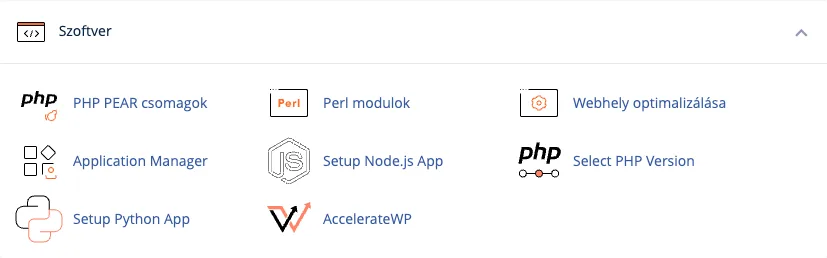
Log in to cPanel and, in the Software section, click on the AccelerateWP icon.
The My WordPress Sites table lists the WordPress sites found in your cPanel account. Next to the Website column, the AccelerateWP column indicates caching and file optimisation, whilst the AccelerateWP Premium column indicates the Redis object cache (we’ll discuss this below, in the section on the WP Pro package). A cell may contain the following:
- No advice: the system has not yet suggested this feature for this page. You can still enable it manually.
- Advice available: after analysing slow requests to the website, the system suggests that you enable this feature.
- Active: the advice has been applied; the feature is working.
- Red exclamation mark: something is preventing the function from working. Click on it and the pop-up window will show the reason and, in the How to fix? section, what to do.
If you have recently installed a new WordPress site and it does not yet appear in the list, click the Refresh button.
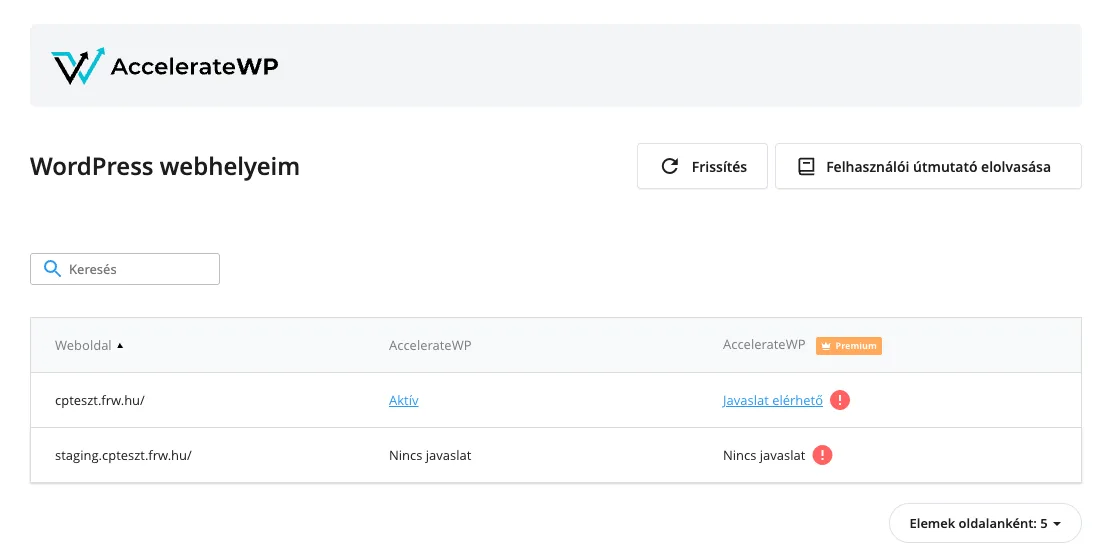
Tip: if the site has a test environment (a staging copy created using the WP Toolkit cloning function), this will also appear in the table. You can test the settings there before enabling them on the live site.
Switching it on from advice
If the AccelerateWP column says Advice available:
- Click the Advice available link. The Advice window shows the ‘Turn on AccelerateWP feature’ advice and the pages the system expects to speed up (N pages are expected to be speed up). The status of the advice is Review.
- Click the Apply advice button.
- The status changes to pending, and the progress is shown as a percentage in place of the button. After half a minute to a minute, the status changes to Applied, and Active appears in the table.
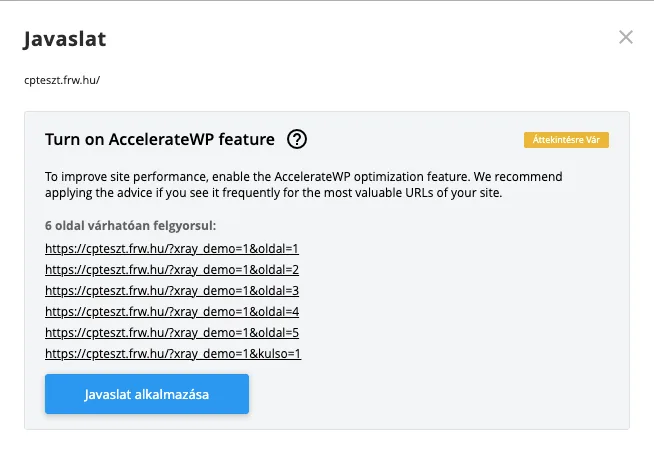
CloudLinux compiles this advice from slow requests received by the website (using the same data that the X-Ray App’s tracking also displays). The URLs listed are merely examples: the cache applies to all public pages on the website.
Manual activation
If the cell says No advice, or you do not want to wait for advice:
- Move your mouse over the AccelerateWP cell in the row on the page. A cog icon will appear on the right-hand side of the cell; click on it.
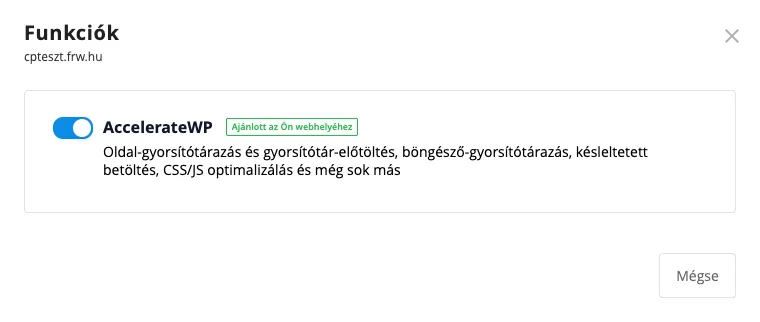
- In the Features window, switch on the AccelerateWP toggle.
- After a few seconds, a success message confirms that the module has been enabled and the feature is working. You can close the window by clicking the Cancel button or the ‘X’ in the top right-hand corner.
What happens when the service is switched on?
AccelerateWP installs and activates the WordPress plugin called AccelerateWP (which you can see on the Plugins page in the WordPress admin panel), and enables it by default:
- full-page caching (with a separate cache for mobile visitors),
- pre-loading the cache, which rebuilds cached pages in the background, so that even first-time visitors do not have to wait,
- the minification of CSS and JavaScript files,
- browser caching and compression of static files (CSS, JavaScript, images, fonts).
The cache is intended for visitors who are not logged in: as a logged-in WordPress user (including admins), you will see the page freshly generated by PHP. You should therefore view the speed improvement in a private browser window. You can tell that the page is being served from the cache by the fact that this line appears at the very end of the source code (Ctrl+U, Cmd+Option+U on a Mac):
<!-- Performance optimized by AccelerateWP. - Debug: cached@... -->
By default, the cache does not store URLs containing the ? character (i.e. those with query parameters); these continue to be generated by PHP each time.
Permalinks: if WordPress is using the default ‘Plain’ permalinks (in the format ?p=123), the plugin will display the warning ‘A custom permalink structure is required for the plugin to work properly’. In the WordPress admin panel, on the Settings › Permalinks page, select a different format, such as Post name. On a live site, this will also change the old URLs, so it is best to do this when the site is first launched.
Settings in the WordPress admin panel
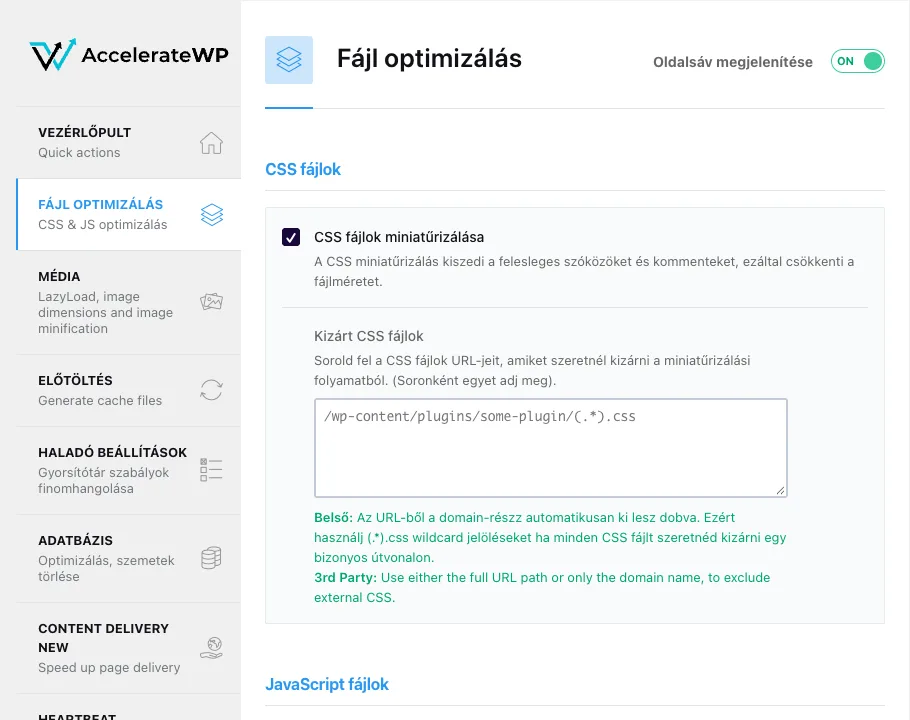
You can find the AccelerateWP settings in the WordPress admin under Settings › AccelerateWP, or in the top toolbar under AccelerateWP › Settings. The tabs on the left-hand side are:
| Tab | What it controls | Default after switching on |
|---|---|---|
| DASHBOARD | Quick actions: clearing and preloading the cache | – |
| FILE OPTIMIZATION | Minifying and combining CSS and JavaScript files, deferred and delayed loading of JavaScript | CSS and JavaScript minification on, the rest off |
| MEDIA | Lazy loading for images, CSS background images, iframes and videos; missing image dimensions and fonts | All off |
| PRELOAD | Cache pre-loading, link pre-loading | Preloading on, link preloading off |
| ADVANCED RULES | URLs excluded from the cache, cookies and browsers, URLs that must always be cleared, query parameters to be stored | – |
| DATABASE | Deleting post versions, automatic drafts, the rubbish bin, spam and transient entries; optimising tables | All off |
| HEARTBEAT | Reducing the frequency of the WordPress Heartbeat API | – |
| ADD-ONS | One-click add-ons: MAx Cache, User Cache | Both off |
What should you enable?
- MEDIA › Enable for images and Enable for iframes and videos: images and embedded videos will only load when the visitor scrolls to them. This improvement is most noticeable on pages full of images, blogs and product lists in online shops. If an image does not appear (for example, the first image in a slider or gallery), add its filename to the exclusion list under this setting.
- MEDIA › Add missing image dimensions: reduces layout shifts whilst the page loads (the Core Web Vitals CLS metric).
- FILE OPTIMIZATION › Load JavaScript deferred and Delay JavaScript execution: these provide the greatest speed improvements based on measured values, but may cause errors with certain templates and plugins (menus, sliders, forms, cookie banners). Enable them one at a time, and after each change, click through the page in a private window.
- Combine JavaScript files rarely improves performance with HTTP/2 (which our servers use), so please leave this disabled.
- DATABASE: The clean-up cannot be undone. Please make a backup before proceeding.
The CONTENT DELIVERY tab (CDN) and Enable image optimization on the MEDIA tab are paid CloudLinux services, not included in our hosting plans. The article on speeding up WordPress discusses how to reduce image sizes.
MAx Cache: a cache without PHP
The CloudLinux MAx Cache Apache module is also running on our servers. If you enable it, cached pages are served directly by the web server without launching PHP, which further reduces response times and lowers resource usage. You can enable it with the Add-on status switch in the MAx Cache box on the ADD-ONS tab of the settings; details and instructions on how to check this are set out in the article on MAx Cache.
Clearing the cache
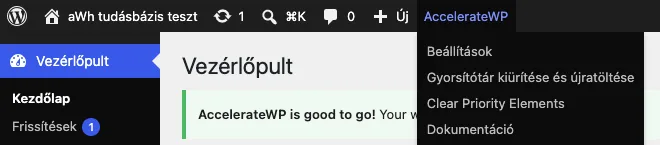
If you edit a post or page, AccelerateWP automatically clears the cache for the relevant pages, and the pre-loading process rebuilds them in the background. If a change (such as a template or plugin setting) is still not visible to visitors who are not logged in, clear the entire cache: select AccelerateWP › Clear and Preload Cache in the top toolbar, or click the CLEAR AND PRELOAD button on the DASHBOARD tab of the settings.
If the site is behind Cloudflare or another CDN, please clear its cache as well.
Redis object cache in the WP Pro package
The WP Pro hosting plan for WordPress also includes the AccelerateWP Redis object cache. This stores the results of frequently used database queries in memory, thereby providing acceleration even where full-page caching is ineffective: in the shopping basket and checkout of online shops, for logged-in users, and within the WordPress admin interface. It is particularly useful for high-traffic WooCommerce online shops and membership sites. Whilst the AccelerateWP Premium column appears in the table for the other packages, the Redis object cache is only available in the WP Pro package.
To enable this:
- In the AccelerateWP Premium column, click the Advice available link, if there is one (‘Turn on Object Caching’), and then the Apply advice button. Without advice, hover your mouse over the cell, click the cog icon and toggle the Redis Object Cache switch to ‘On’.
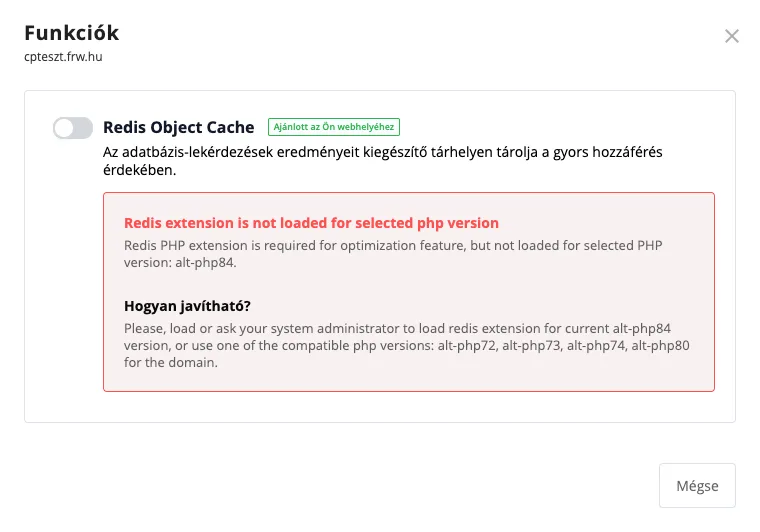
- If the error message ‘Redis extension is not loaded for selected php version’ appears below the toggle, the
redisPHP extension is not enabled in the website’s PHP version. Enable it on the Extensions tab of Select PHP Version (Manage PHP Extensions), then return to AccelerateWP and enable the feature. The error message also lists older PHP versions, but you do not need to switch back to any of these.
Do not use any other object cache plugin alongside the object cache (such as Redis Object Cache, Object Cache Pro or the W3 Total Cache object cache), and ensure that the snuffleupagus PHP extension is not enabled. If you later switch to a different PHP version, ensure that the redis extension is enabled in that version as well, as extensions are stored on a per-version basis.
Deactivation
Disable AccelerateWP in cPanel, not amongst your WordPress plugins:
- Hover your mouse over the AccelerateWP cell, click on the cog icon, and in the Features window, switch off the AccelerateWP toggle. The system will deactivate and remove the AccelerateWP plugin and cache; the website will continue to function in exactly the same way as it did before it was enabled.
- If you switched it on from advice, you can also undo it with the Rollback button under the Applied advice in the Advice window.
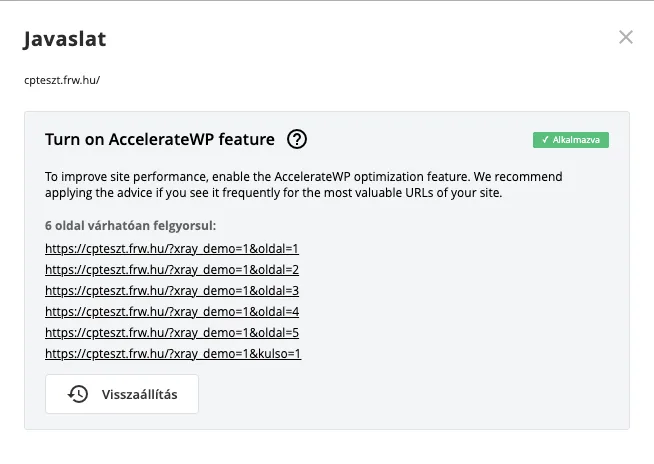
The Active label in the table shows the status of the advice. Whether the feature is currently enabled is shown by the toggle switch in the Features window, which opens via the cog icon.
Troubleshooting
- The layout broke, or a menu, slider or form stopped working after switching it on. Disable the setting you enabled most recently on the FILE OPTIMIZATION or MEDIA tab (most often delaying or combining JavaScript causes it), save, then clear the cache. If CSS minification causes it, you can also add the faulty file to the Excluded CSS Files field.
- The feature cannot be enabled; a red exclamation mark appears in the cell. Click on the exclamation mark: the window will identify the issue (for example, another caching plugin, an unsupported PHP version or a missing PHP extension) and provide a solution. If there is another caching plugin, disable and delete it from the WordPress Plugins page, then try again.
- If a page is not updating for visitors (for example, personalised content or a list updated from an external system), add its URL to the list of URLs excluded from the cache on the ADVANCED RULES tab.
- The site is still slow. The cache bypasses PHP and the database for visitors who are not logged in. If the slowness occurs for logged-in users, in the shopping basket or in the admin panel, the X-Ray App will show you which plugin or query is causing the delay. You can find further methods in the article on speeding up WordPress.
If the error persists, please contact us and provide the website address. The AccelerateWP log file on the hosting server is located at ~/.clwpos/main.log; if you know the time the error occurred, please include that as well.