 English
 Magyar


Lists of backup plugins tend to compare features, yet the real questions are twofold: where is the backup, and what is needed to restore it? A backup that is stored on the same storage space as the website and can only be restored via the website’s admin interface is of no help precisely when it is needed most: when WordPress fails to load, or when the website has been hacked.
In short:
- Introductory page, updated weekly: in addition to daily backups of your hosting account, all you need is a free plugin (such as BackWPup or UpdraftPlus) that sends the backup to external storage (S3, R2, B2, Google Drive).
- Content that changes daily, large media library: a plugin that only backs up the changes (such as UpdraftPlus Premium’s incremental backups), so that the nightly backup does not run out of time.
- Online shop, booking system: an external backup service (such as BlogVault or Jetpack VaultPress Backup) which allows you to restore your site from its own interface even if the website’s admin panel is not working.
- Under each of these: the hosting provider’s own daily backup, which operates independently of WordPress.
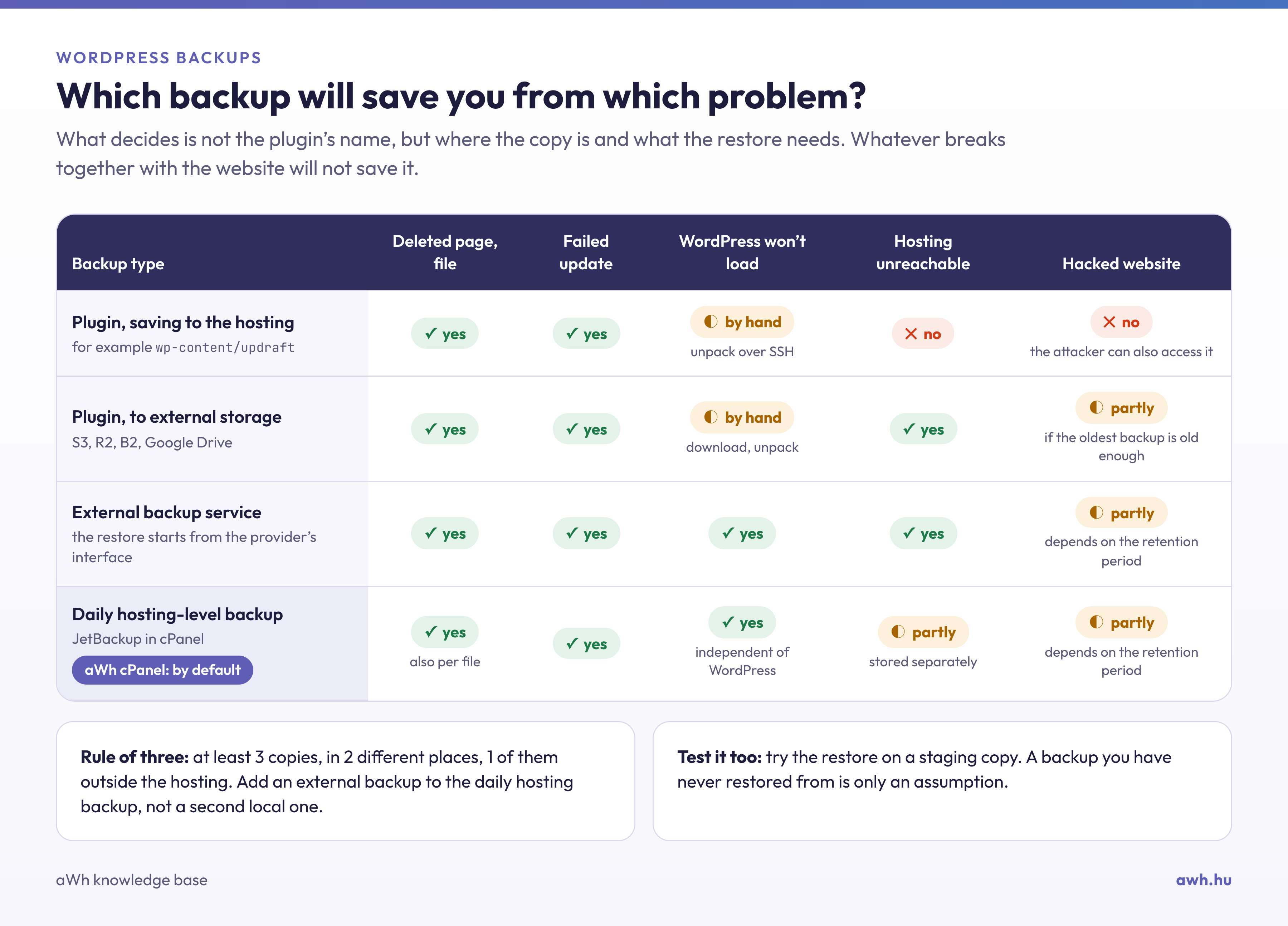
Four types of backups
The plugin, saved to your hosting account. The backup is stored in a folder within wp-content or in the home directory. It restores a deleted page or a botched template modification, but it is stored on the same hosting account and in the same folder as the one it is protecting. In the event of a breach, the attacker will also have access to it, and ransomware specifically targets these folders. What’s more, it also takes up your storage space.
Plugin sent to external hosting. The backup location is now correct, but restoration still takes place within WordPress: the plugin must load, so PHP, the database and the admin interface must be functioning. If the admin interface fails to load due to a critical error, you will need to download the backup manually and extract it.
External backup service. The provider transfers the data to its own servers and initiates the restoration via its own interface, either via the plugin or via SFTP. It is designed specifically for situations where the website is not functioning. This is a subscription-based service.
Daily backups of your hosting. We perform daily backups of our cPanel and WordPress hosting accounts, which are stored at a geographically separate location. Using the cPanel JetBackup interface, you can restore a previous day’s state, or even just a single file or database (restore from backup). WordPress does not need to be running for this. The limitation is that only one state is recorded per day, and in the event of a breach, the backup may already contain the attacker’s code; in such cases, you must restore an earlier, clean day’s state.
Plugins at a glance
- UpdraftPlus: the free version performs scheduled full backups, sends them to a wide range of external hosting locations, and restores them with a single click from the settings page. Incremental backups, cloning and migration are features of the paid (Premium) version. With large media libraries, it is the nightly full backup that tends to cause issues.
- BackWPup: defines tasks (what, when, where), creates and uploads the backup, and deletes old backups. The free version is generous; its restoration tools are simpler than those of UpdraftPlus.
- BlogVault, Jetpack VaultPress Backup: subscription-based services; both backups and restores are carried out on the provider’s server.
- WP Toolkit: on the website card within the cPanel WordPress Management interface, you can back up and restore your site using the ‘Backup/Restore’ link, even without a plugin. This is stored on the hosting server and is useful for a quick backup before an update or major changes.
Our blog post discusses the general rules of backups (the 3-2-1 rule, frequency).
Please use only one backup plugin at a time: two schedulers writing large archives at the same time can easily exhaust your hosting or exceed your resource limits.
Basic backup without add-ons
Before you configure any add-ons, make sure you know how to use the service without them. This will still work even if everything else goes wrong. For plans with SSH access (cP Premium, cP Pro, cP Pro 100), use the cPanel Terminal interface:
cd ~/public_html
mkdir -p ~/mentes
mysqldump --single-transaction --no-tablespaces "$(wp config get DB_NAME)" > ~/mentes/db-$(date +%F).sql
tar -czf ~/mentes/wp-content-$(date +%F).tar.gz wp-content wp-config.php
ls -lh ~/mentes/
tail -1 ~/mentes/db-$(date +%F).sql
wp db exports do not work on aWh’s servers (the PHP function proc_open is disabled), so use the mysqldump command directly; the configuration of the ~/.my.cnf file containing the password is described in the article on using WP-CLI. The final line of the database backup should read -- Dump completed on …; if this is missing, the backup has been interrupted. The ~/mentes folder is located next to public_html; it is not accessible via the web.
This is currently just a file on the hosting server. It only becomes a backup once you download it to your own computer (via SFTP) or to an external hosting location. Without any add-ons, you can also create a full account backup via the cPanel Backup interface (full backup in cPanel).
Scheduling and retention
- Separate the database from the files. The database changes daily (hourly for online shops), whilst the 40 GB media library rarely does. A full backup every night is wasteful, and a large archive can easily run out of time. A good approach is to back up the database daily, files weekly, plus a manual backup before every update.
- Retention should extend beyond the time of discovery. A breach is often only detected days or weeks later. If you only retain backups for 7 days, it is quite possible that the attacker’s code is already present in all of them. Retention should be at least 30 days, and longer for online shops.
- Check the external hosting as well, not just the extension’s status. Access to Google Drive and Dropbox may expire when you change your password, whilst the extension’s interface may continue to show the old ‘successful’ status for days. Check the destination folder monthly: is the date up to date, and has the size changed?
Why not give it a go?
The backup that you have never restored from is merely a hypothetical scenario. At least once a year, and after every major change, restore it to a test environment – such as a staging copy – and measure how long it takes from the moment you ‘get started’ until the website is functioning correctly. Most people are surprised at how much longer it takes than they thought. On the restored copy, check the following:
wp core verify-checksums
wp option get siteurl
wp post list --post_type=post --format=count
You do not need to extract the entire archive to extract a single file:
tar -tzf ~/mentes/wp-content-2026-10-27.tar.gz | grep 'themes/sajat-tema/functions.php'
tar -xzf ~/mentes/wp-content-2026-10-27.tar.gz wp-content/themes/sajat-tema/functions.php
Common issues
The night-time backup is interrupted. This is usually due to the PHP time limit or, on a low-traffic website, WP-Cron, which does not even start at night because there are no visitors. Leave the scheduling to the server (replace WP-Cron with cPanel cron), or opt for incremental backups.
After restoration, there may be a redirect loop or mixed content. The backup contains the old URL. If you are restoring to a different domain, replace the URL using the wp search-replace command, not by editing the SQL file in a text editor, as this will corrupt the serialised settings.
The website is no longer operational, and only a backup created via a plugin is available. In such cases, it is not possible to restore from the plugin. Please use the daily backup of your hosting account, or download the archive from external storage and extract it manually. If you get stuck, please contact our support team.
The backup is not version control and is not a security measure. Git is the better solution for a botched template modification (installing a theme from Git), whilst an old, clean backup – which can only be achieved through long-term retention – is the solution for a hacked website. The steps for backing up and restoring are described in the article on backing up WordPress.